Hi everyone  ,
,
In this post, I’ll show you how to get started with the Inistate GPT App and use it to build applications using natural language.
Before getting started, make sure you have:
-
 Inistate GPT App installed
 -
An Inistate workspace
For this example, we’ll create an AI Calorie Tracker.
Step 1 - Open the Inistate GPT App
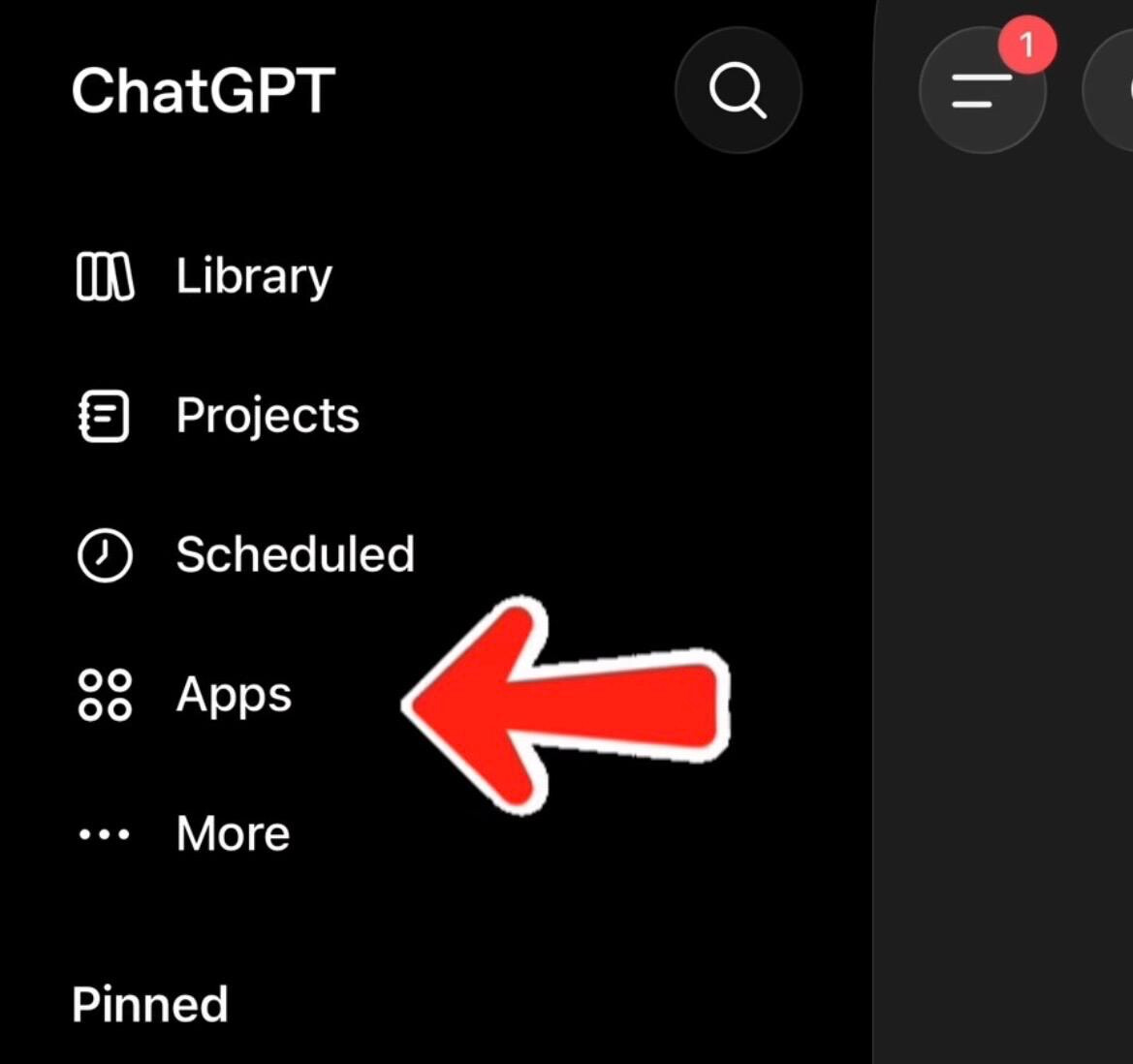
- Open ChatGPT.
- Click the ☰ (3-line menu).
- Select Apps.
- Search for Inistate.
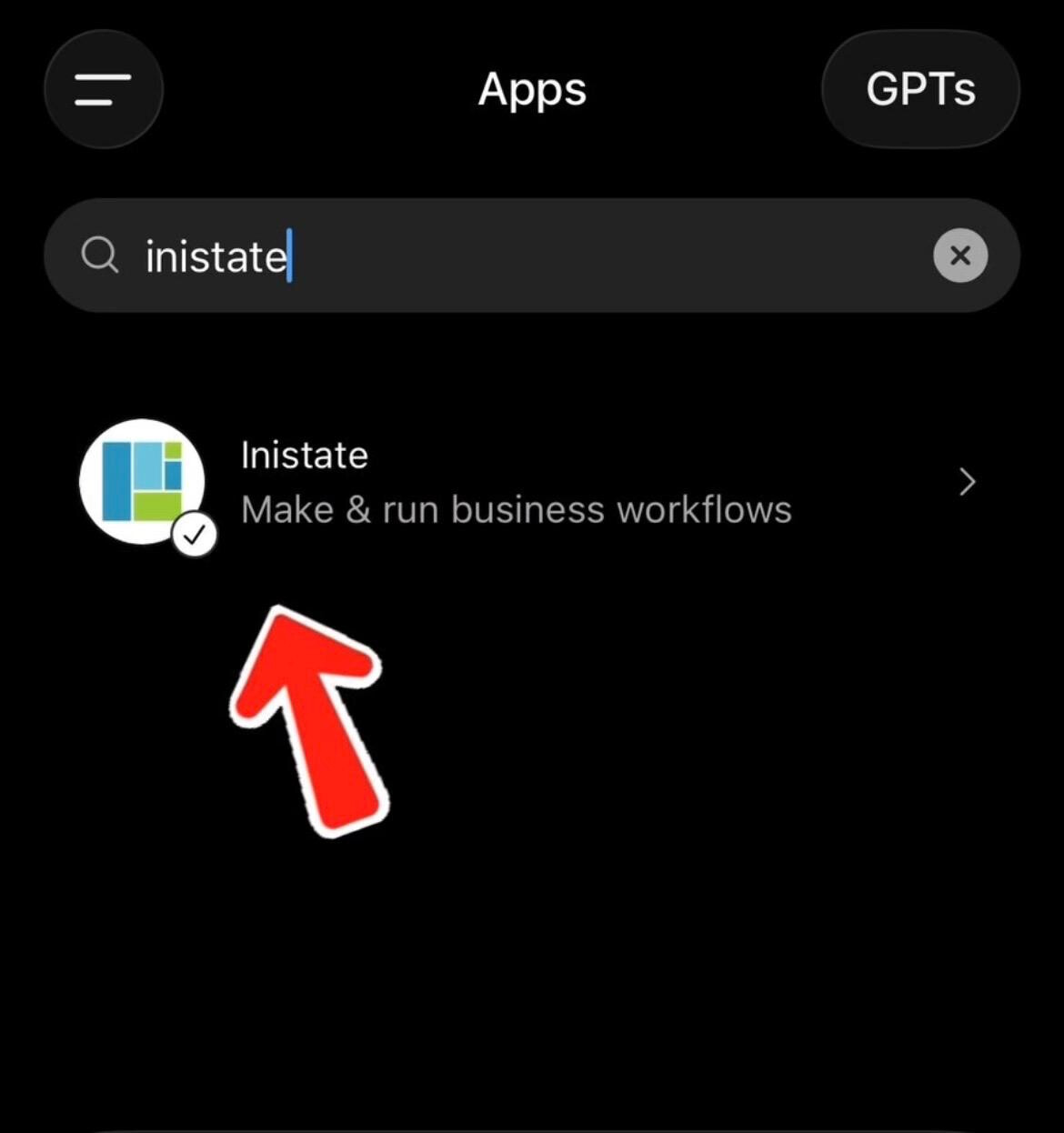
- Click Start Chat.
Step 2 - Upload a Food Photo
Take a picture of your meal or upload an existing image.
Prompt
@Inistate Create a module to track my calorie intake. Choose "Workspace Name" as the workspace.
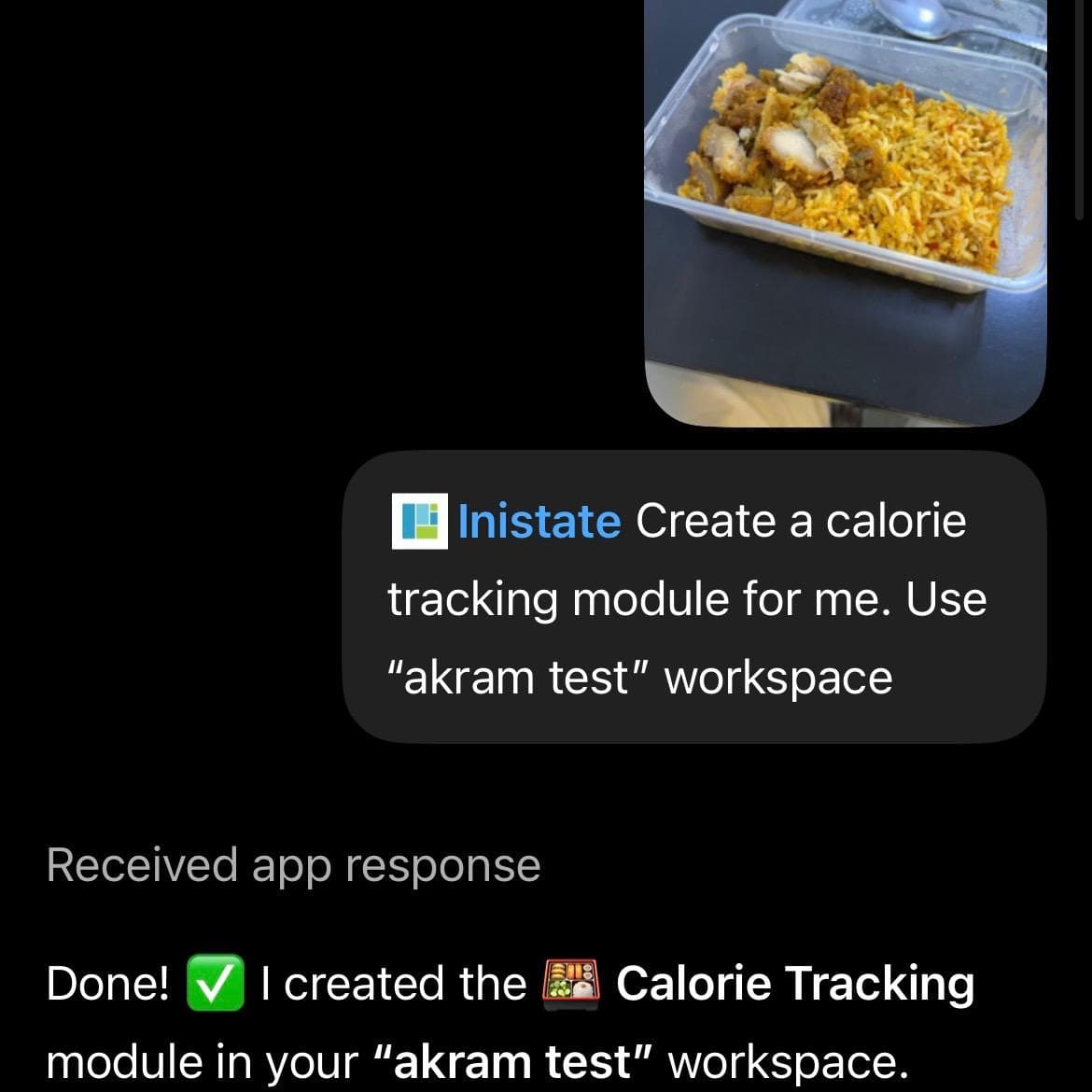
The Inistate GPT App will automatically create a Calorie Tracking module in the selected workspace.
Step 3 - Open the Module
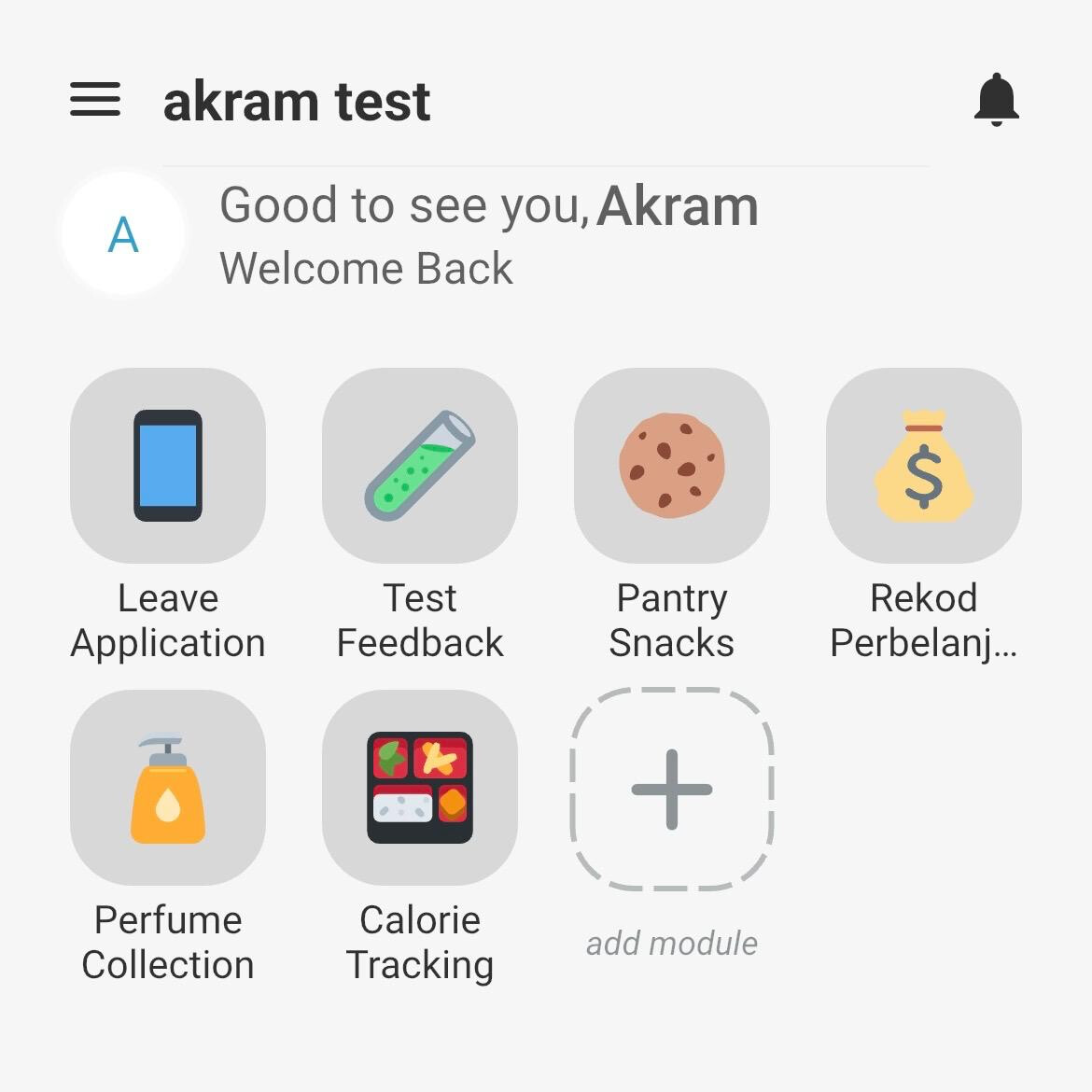
Open your Inistate app and navigate to the selected workspace.
You’ll see that the Calorie Tracking module has been created automatically.
Click on the module to open it.
Step 4 - View the Records
Inside the module, you’ll find the sample calorie records that were created automatically.
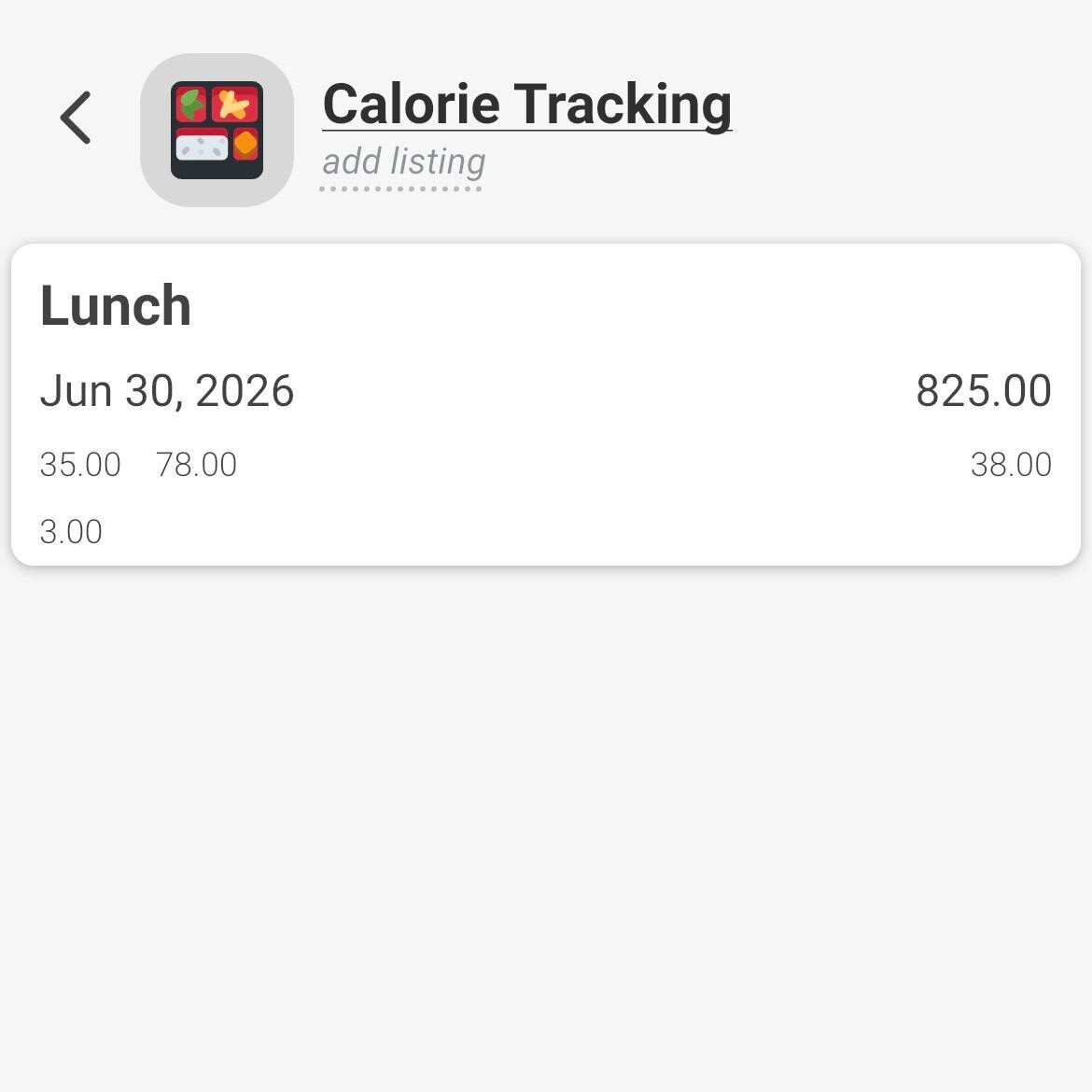
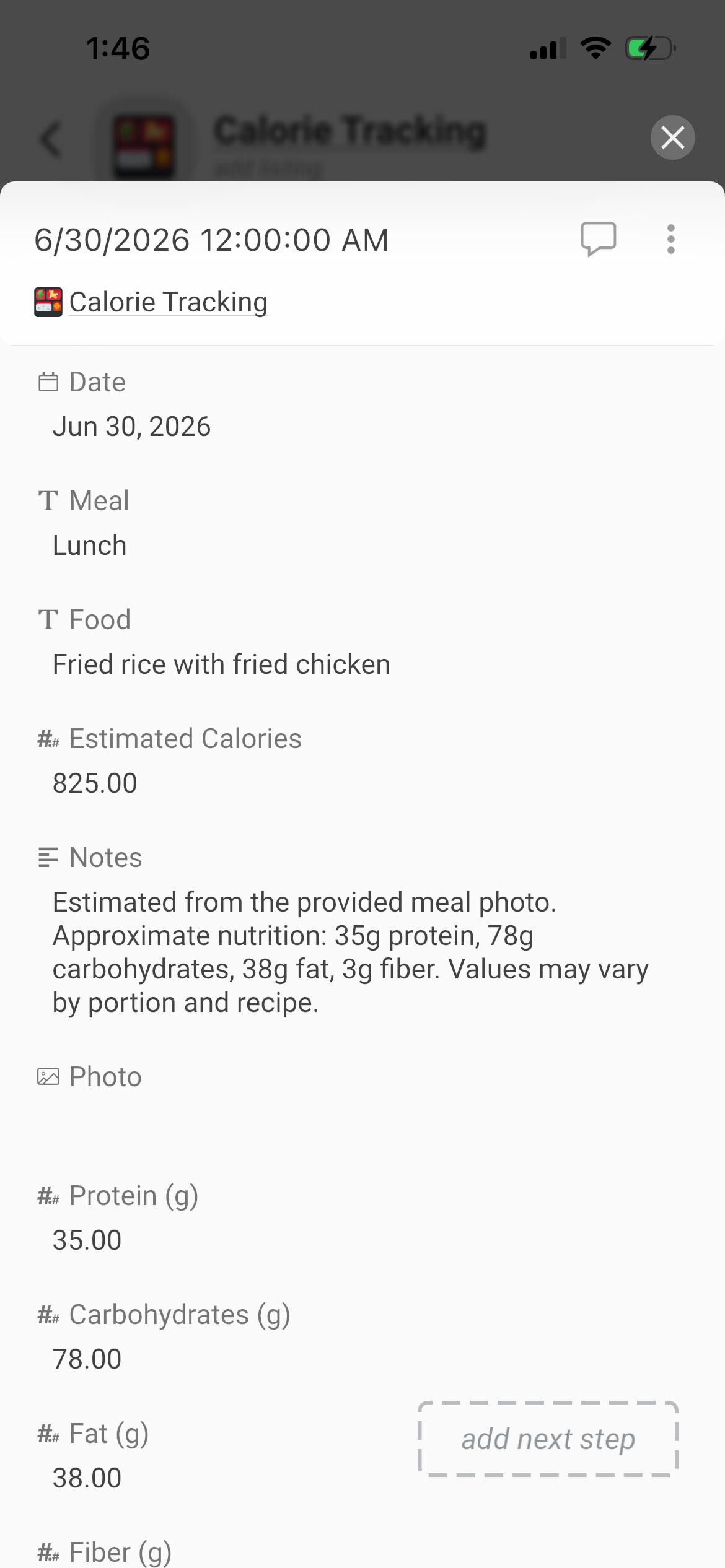
Each record includes useful information such as:
-
 Meal Name
 -
 Date
Date -
 Meal Type (Breakfast, Lunch, Dinner, or Snack)
 -
 Estimated Calories
Step 5 - Add a Meal Using AI
Now, simply upload a photo of your meal and ask:
Add this food to the record.
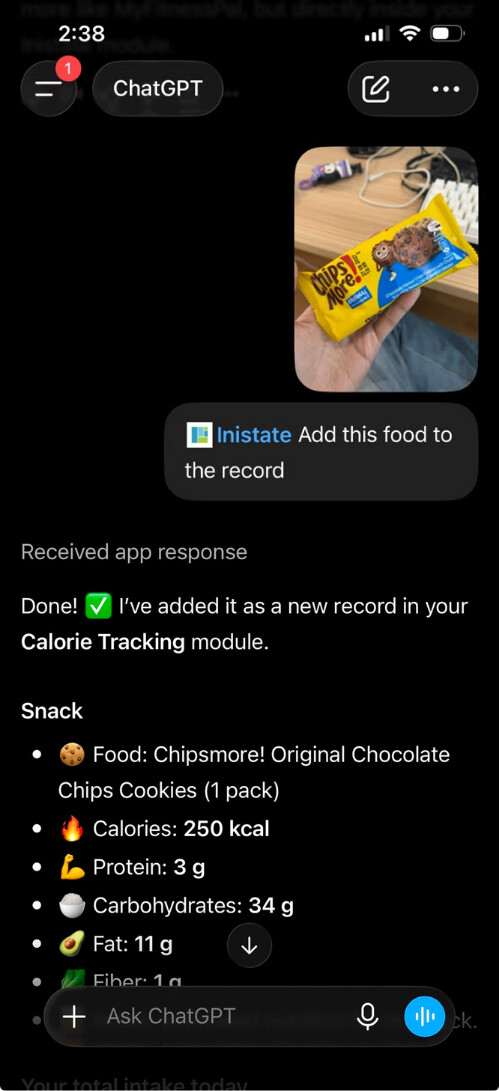
AI will identify the food, estimate its nutritional information, and automatically add a new record to your Calorie Tracking.
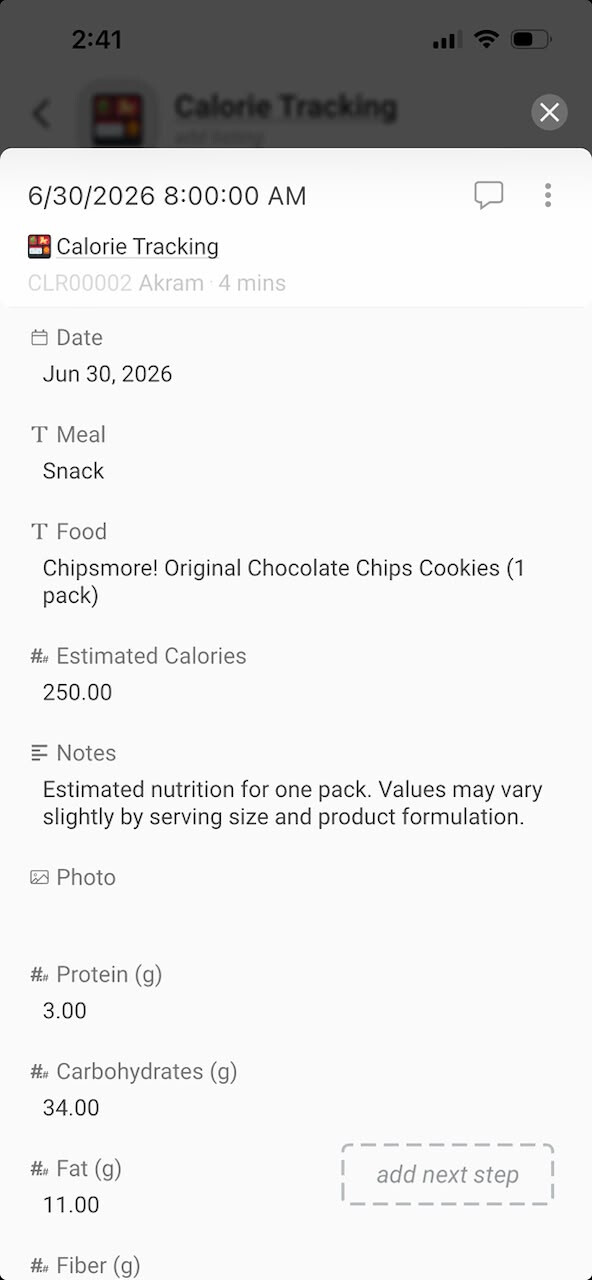
Generate Analytics with AI
Once you’ve recorded your meals, you can ask AI to analyze your calorie intake using natural language.
For example:
 Monthly Calorie Trend
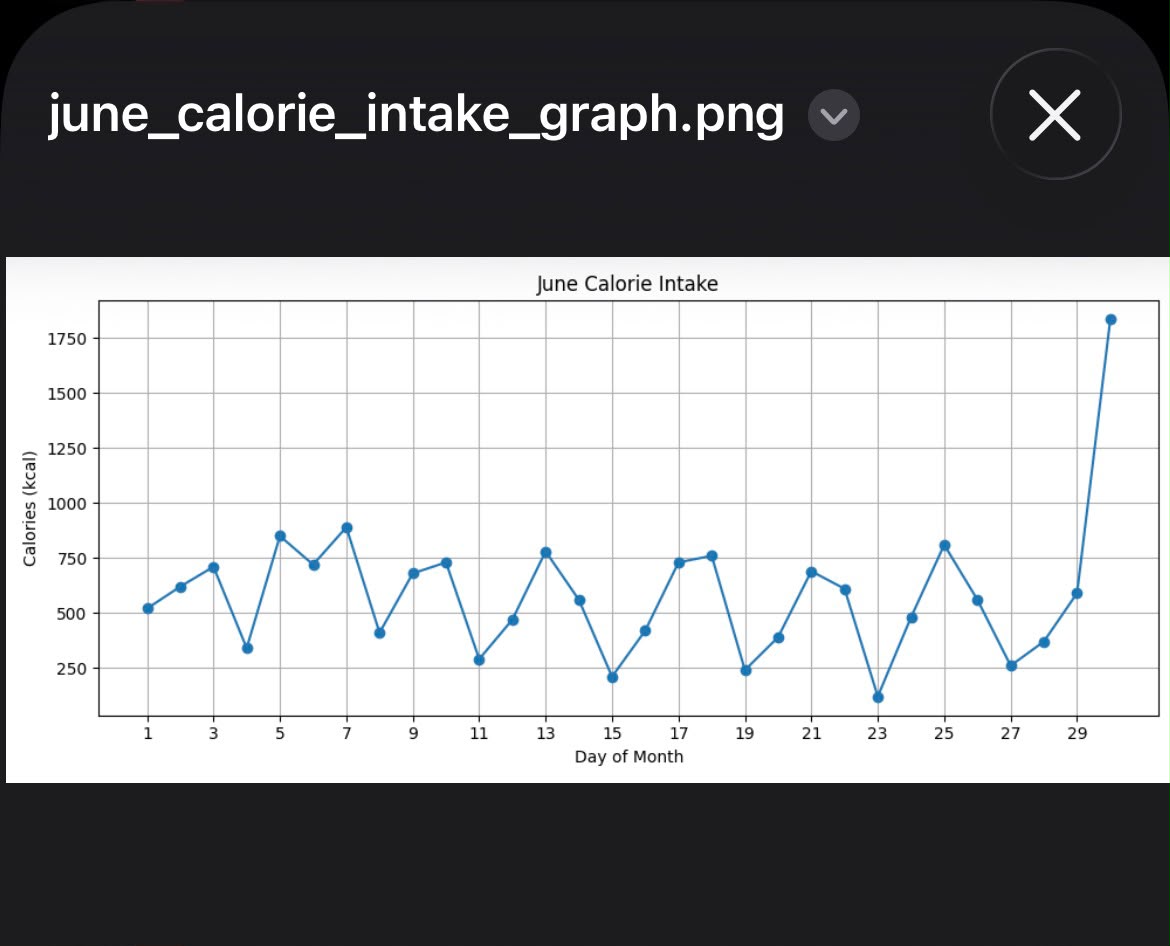
Generate graph for calorie intake throughout this month.
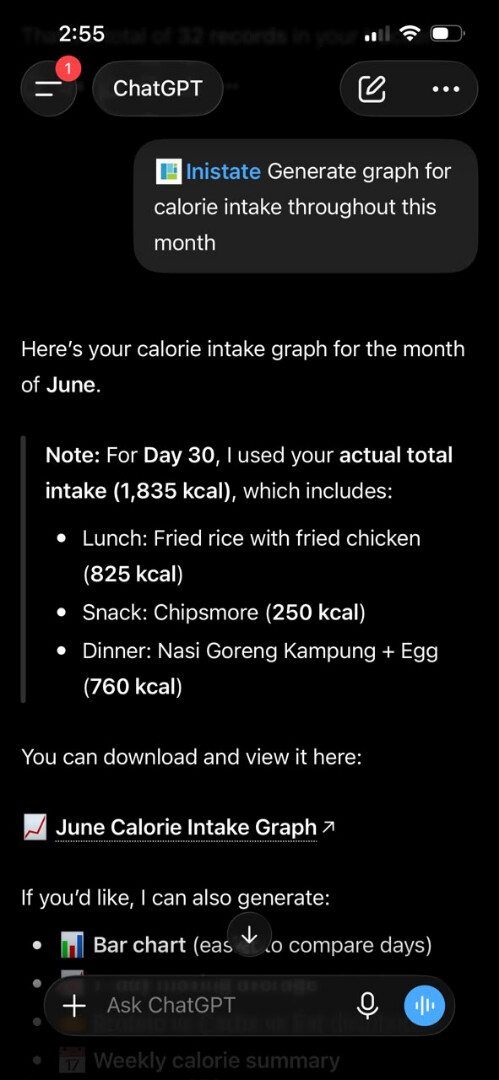
AI will generate a chart showing your daily calorie intake throughout the month.
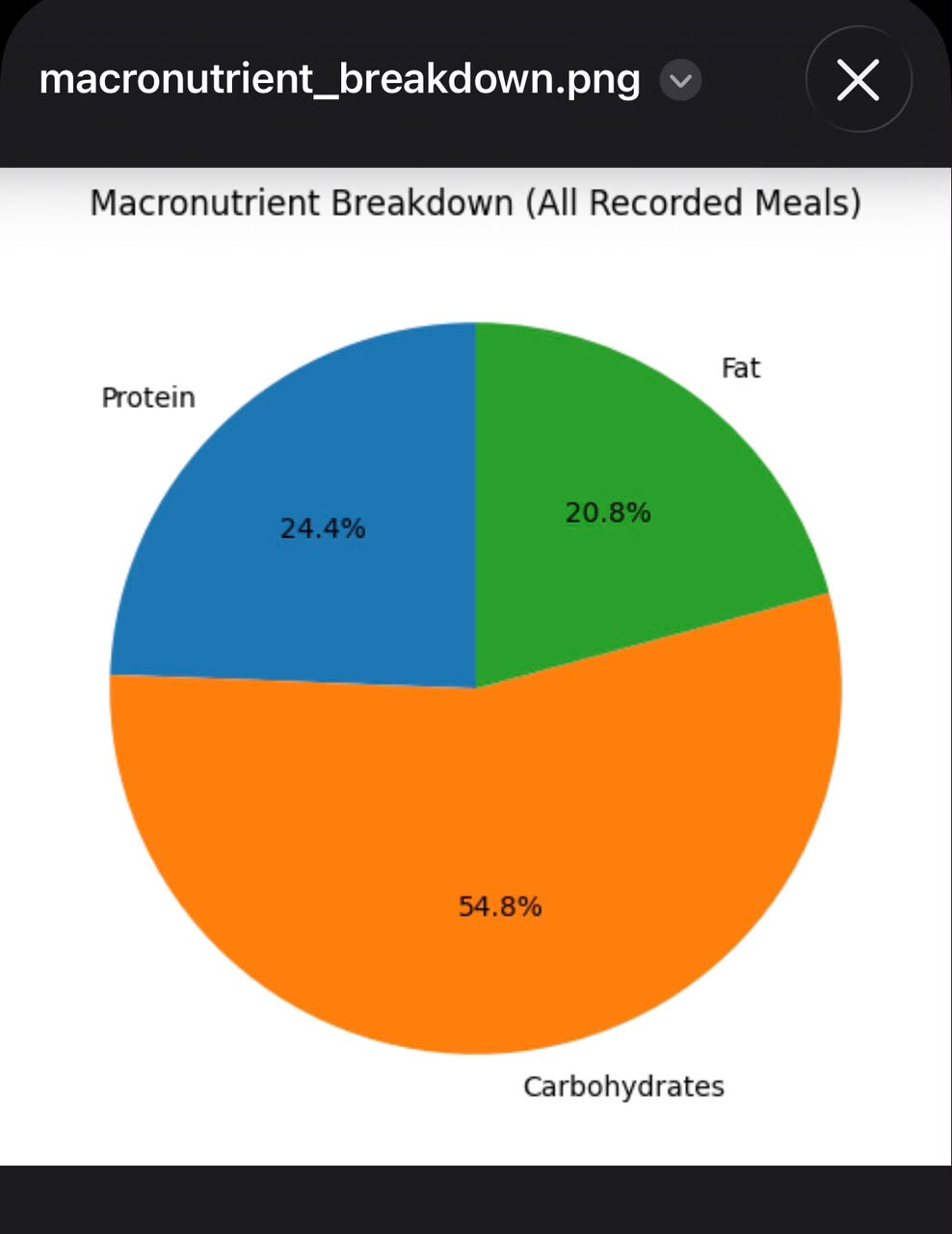
Nutrition Breakdown
Ask AI to generate a nutrition breakdown chart using the following prompt:
Buat carta pecahan protein, karbohidrat dan lemak.
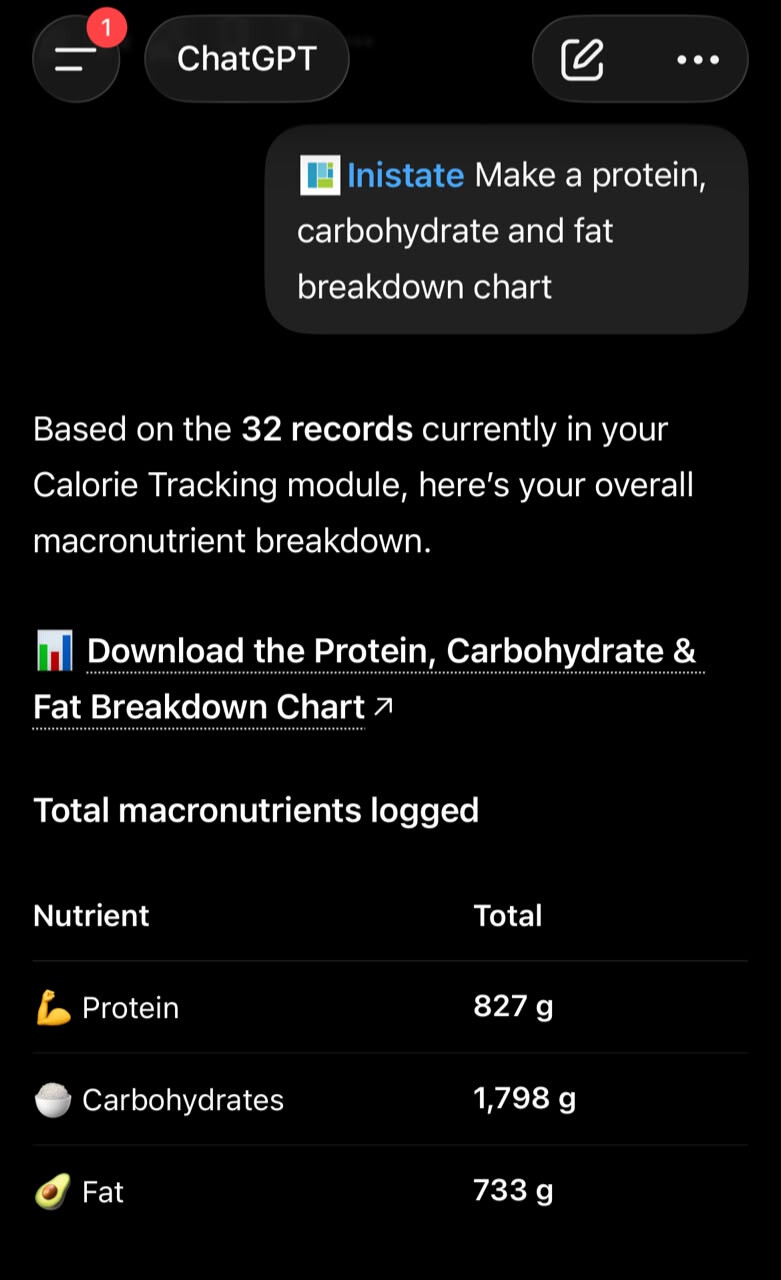
AI will generate a chart showing the distribution of your macronutrients.