Guide
How to reload (reconnect) the Inistate plugin in ChatGPT.
Try these steps in order — this disconnects the old plugin session and connects a fresh one, which resolves most connection and login issues.
Steps
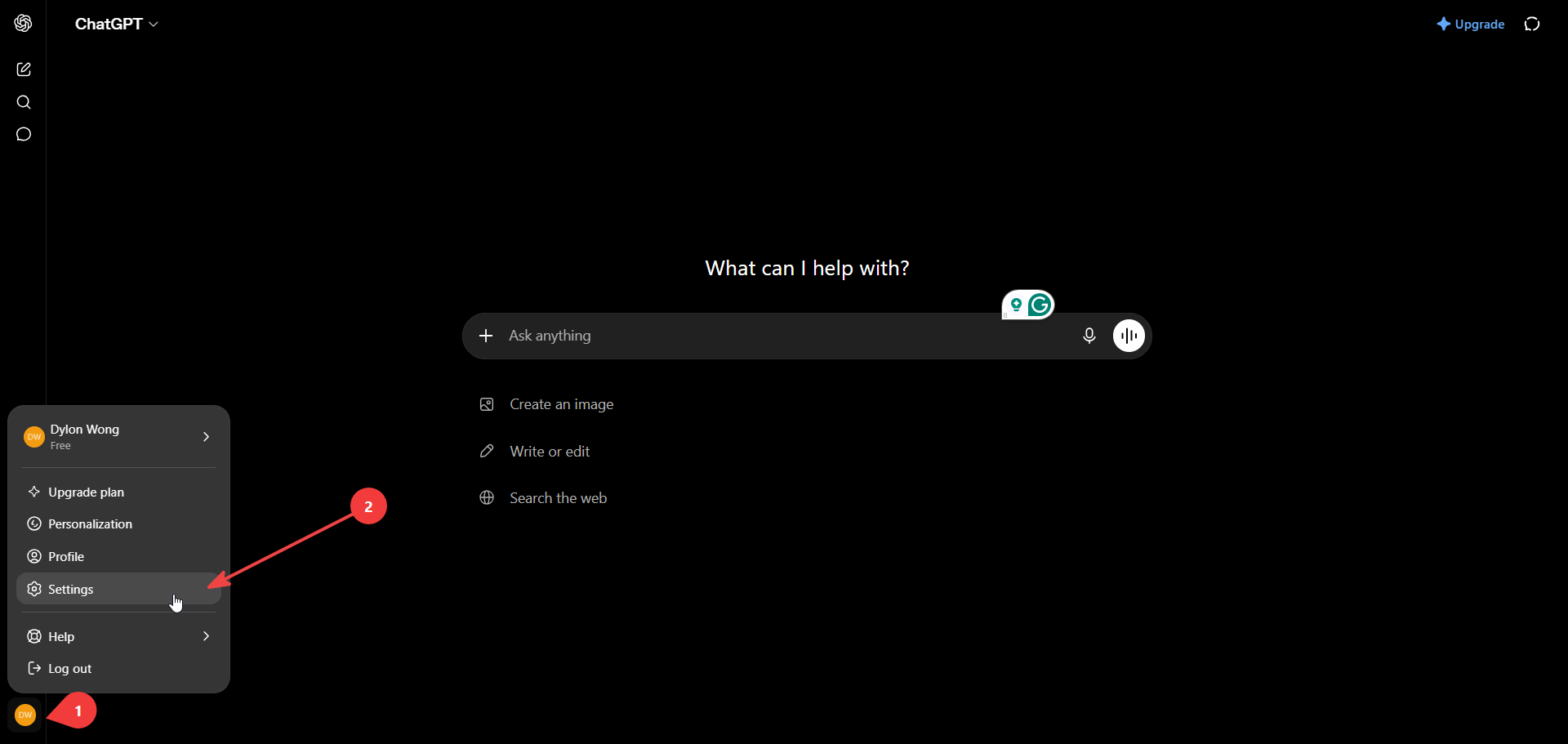
1. Open Settings
Click your profile icon at the bottom-left, then click Settings.
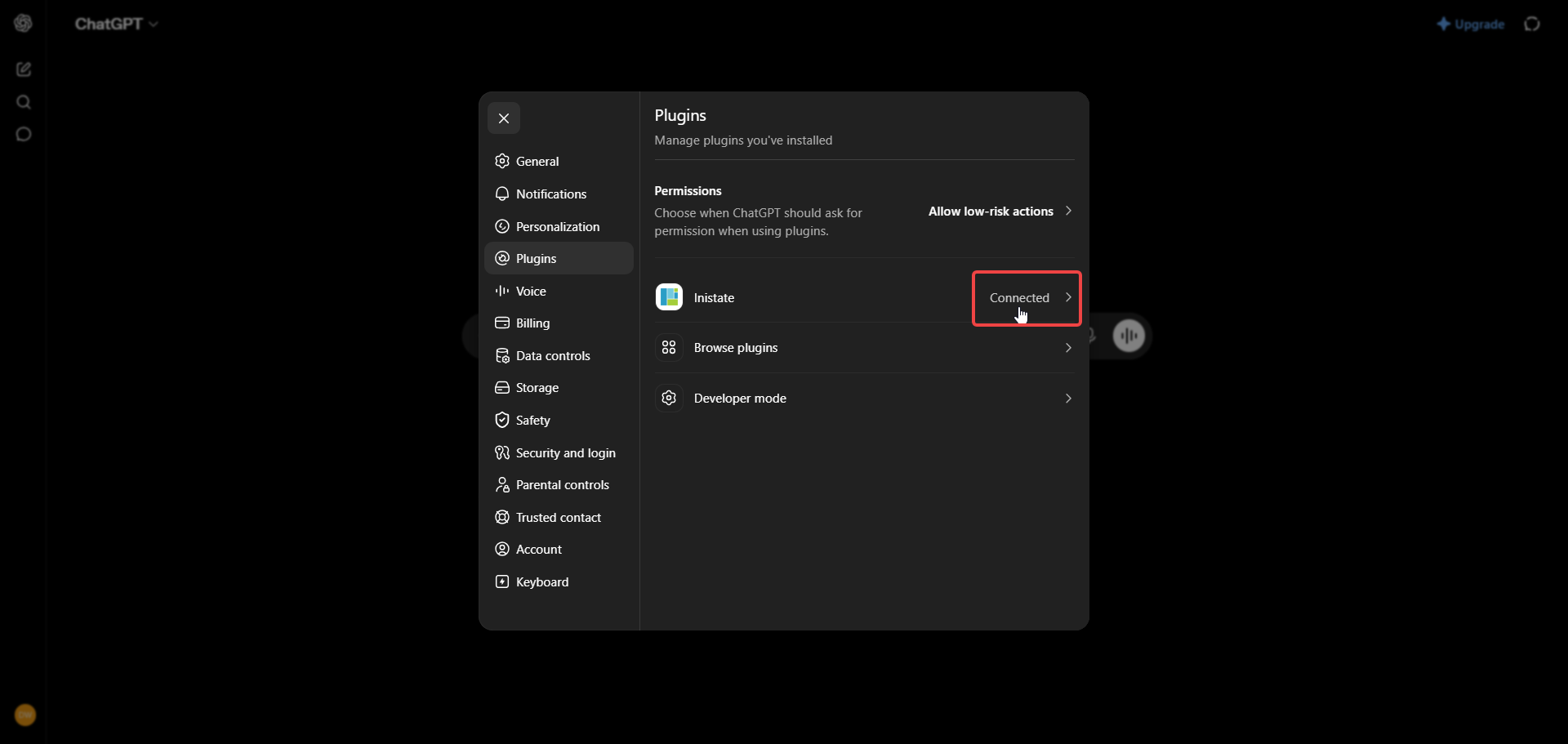
2. Open the Inistate plugin
Go to Plugins, then click Inistate (it will show as Connected).
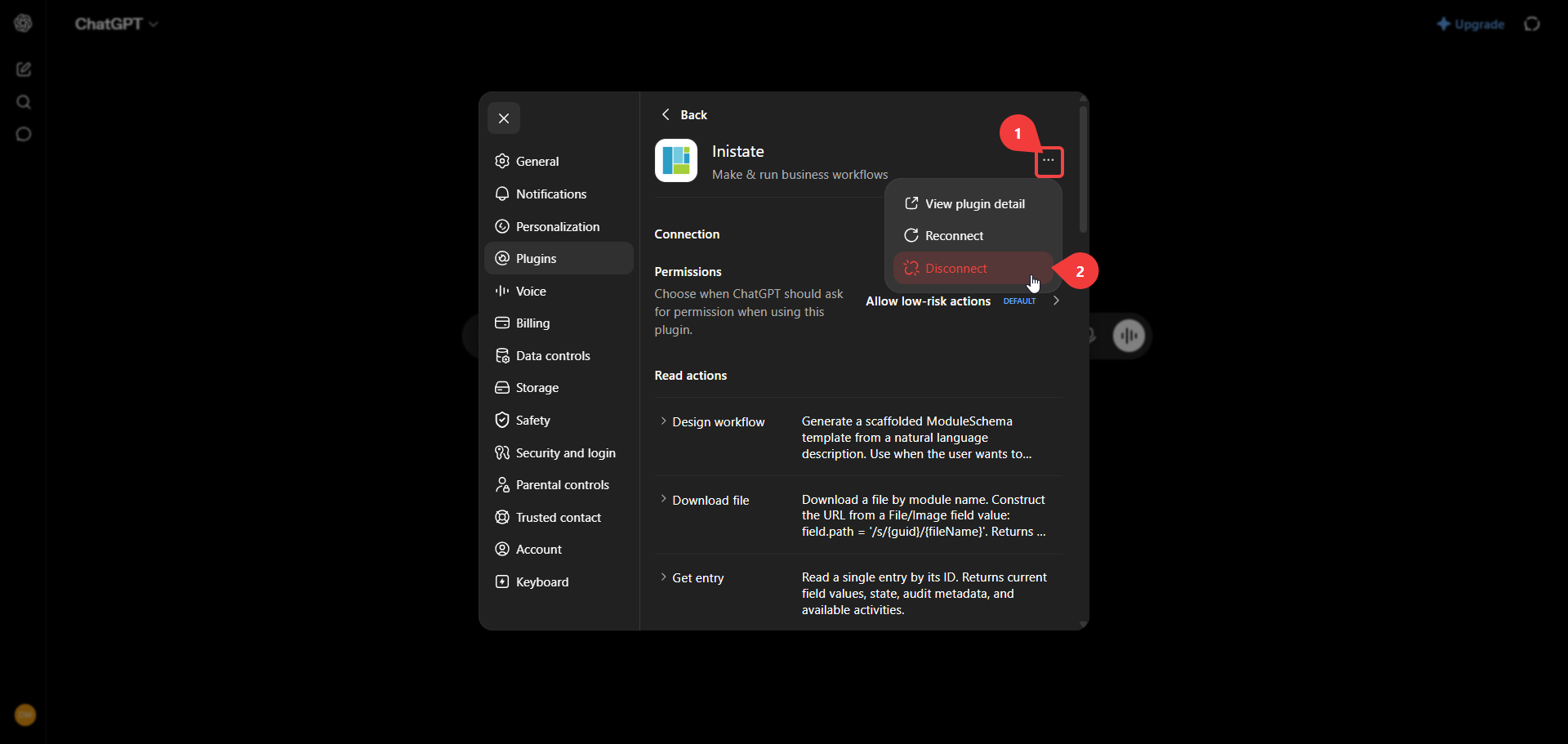
3. Disconnect
Click the … (3 dots) at the top right, then click Disconnect.
Tip: You can also try
Reconnecthere first — if that fixes it, you can skip the rest. If it doesn’t,Disconnectand continue below.
Reconnect Inistate
After disconnecting, connect it again with these steps.
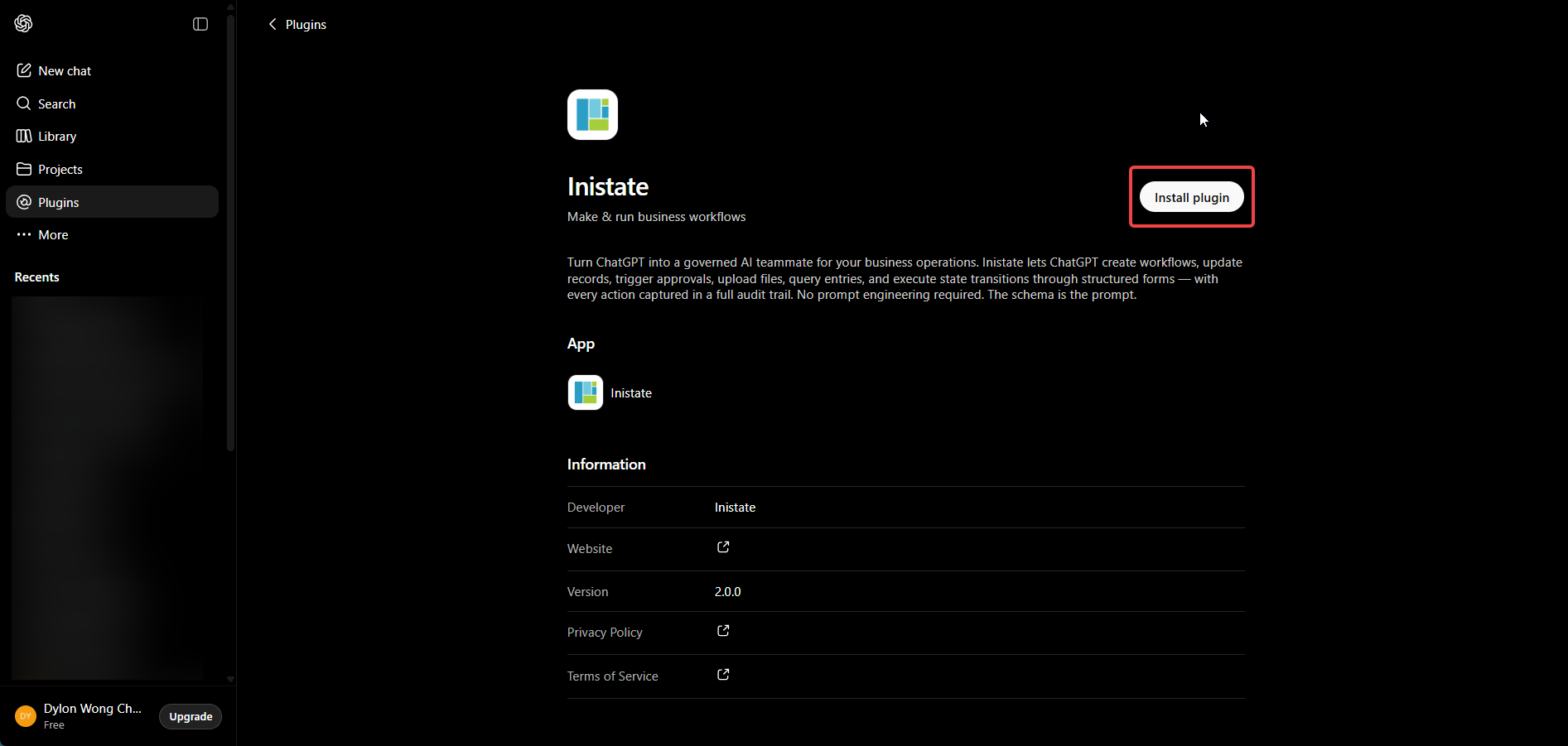
1. Open the Inistate app page
Go to chatgpt.com/apps/inistate and click Install plugin.
2. Sign in
A dialog will appear to add Inistate to ChatGPT. Click Sign in with Inistate.

3. Log in or authorize
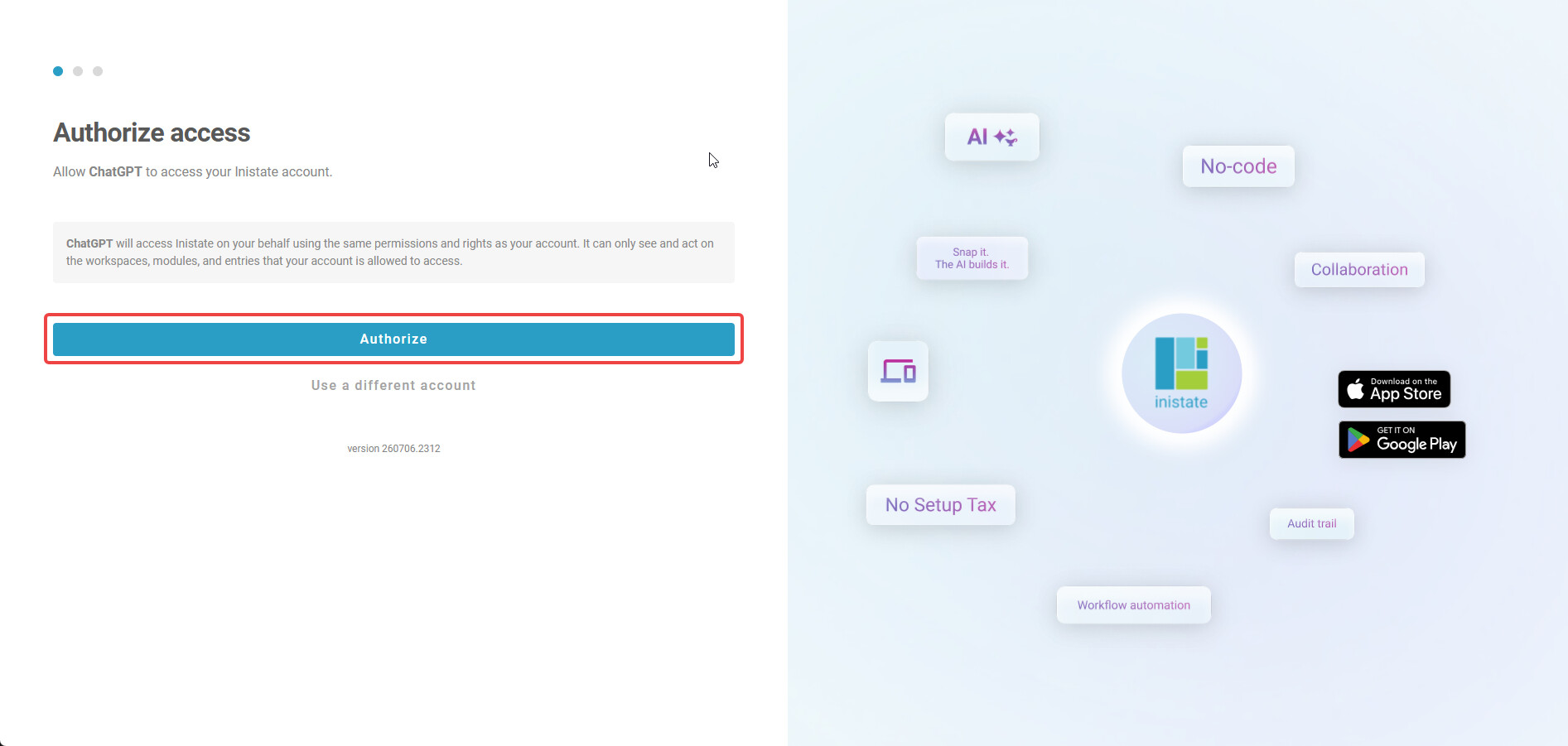
You will be redirected to Inistate.
- If you are not signed in, log in with any method (email/password, Google, or Apple).
- If you are already signed in, you’ll see the authorize screen — click Authorize to allow ChatGPT to access your Inistate account.
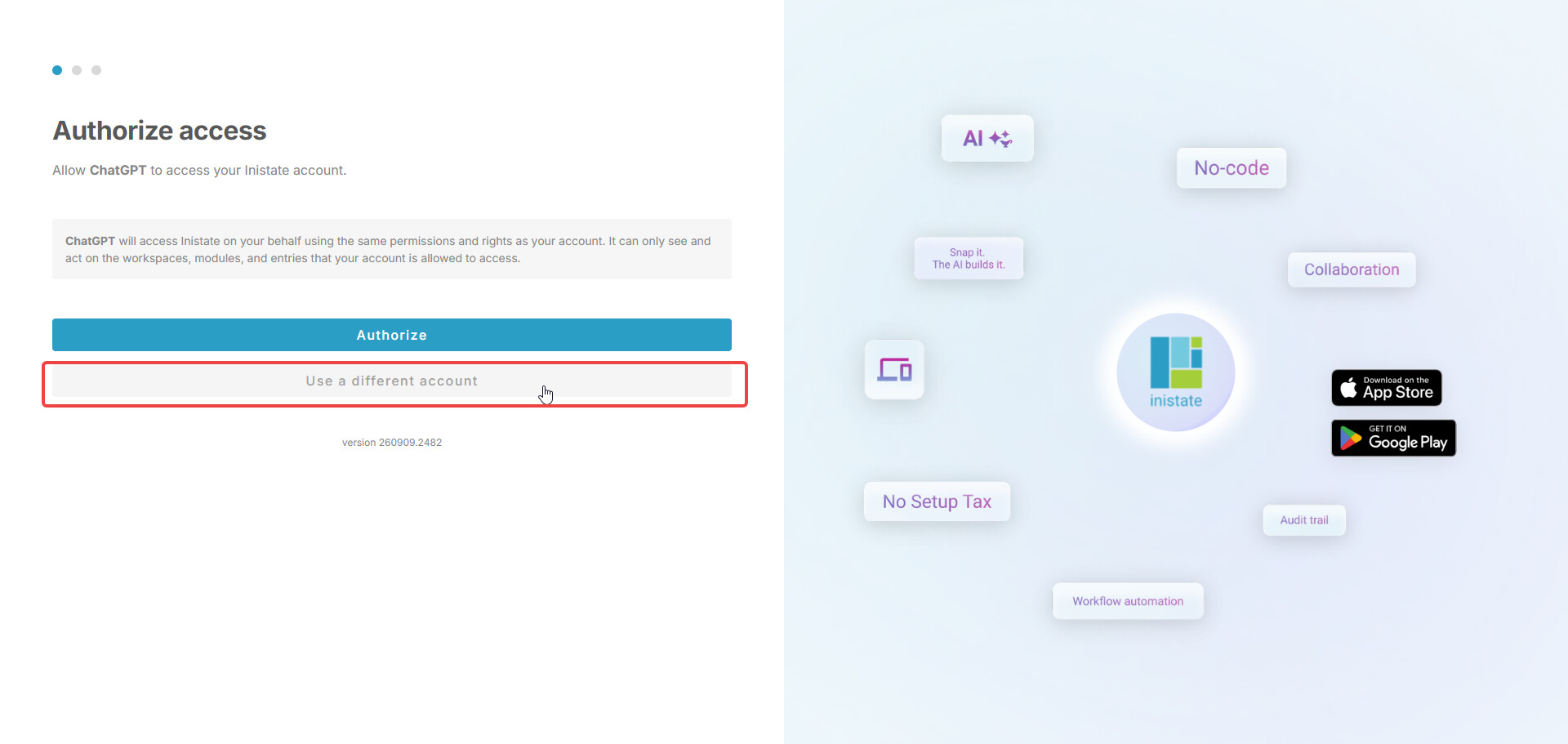
If clicking
Authorizestill didn’t work: click Use a different account instead, then sign in again on the screen that follows.
Then, sign in with your credentials again

4. Connected
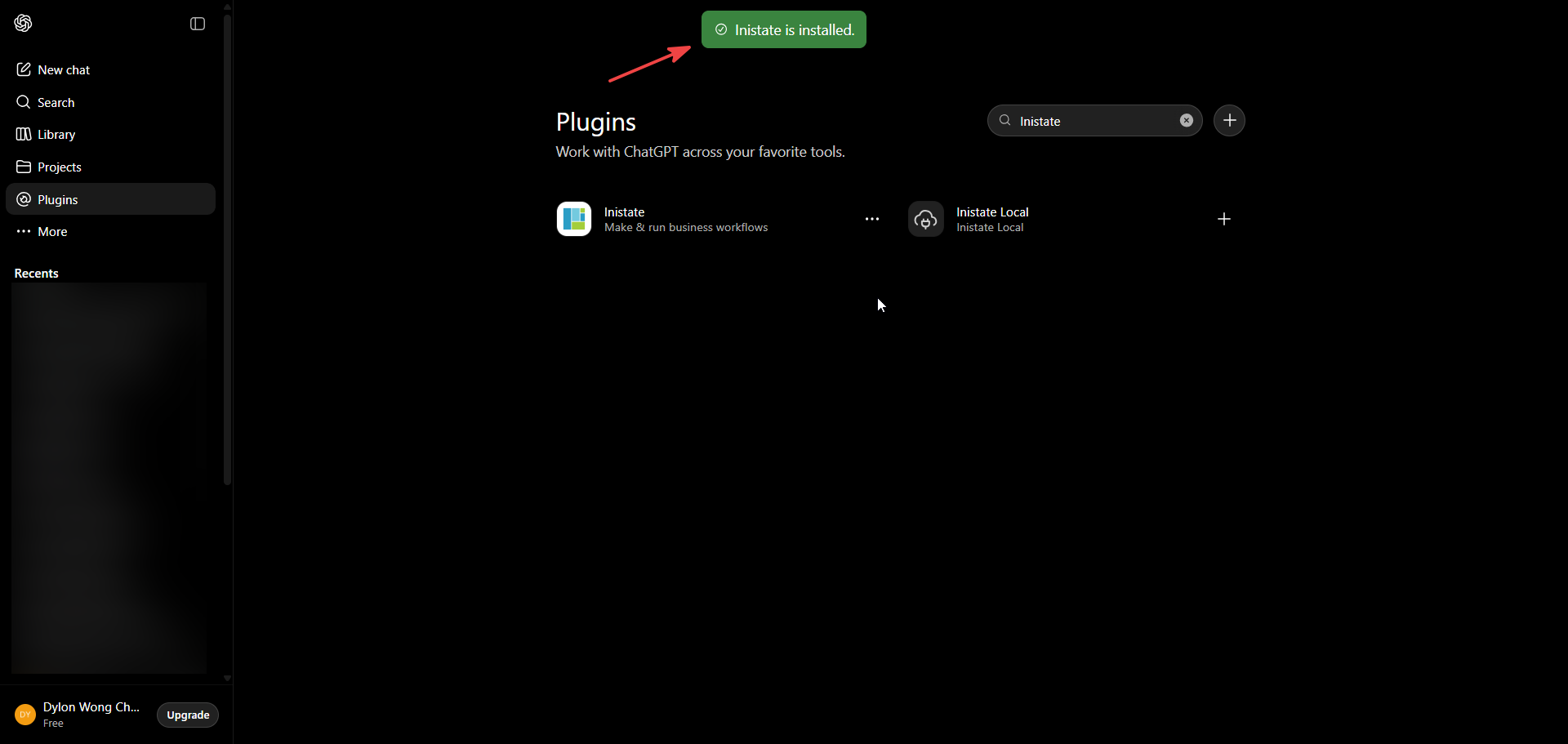
You will be taken back to ChatGPT. You should see “Inistate is installed.”
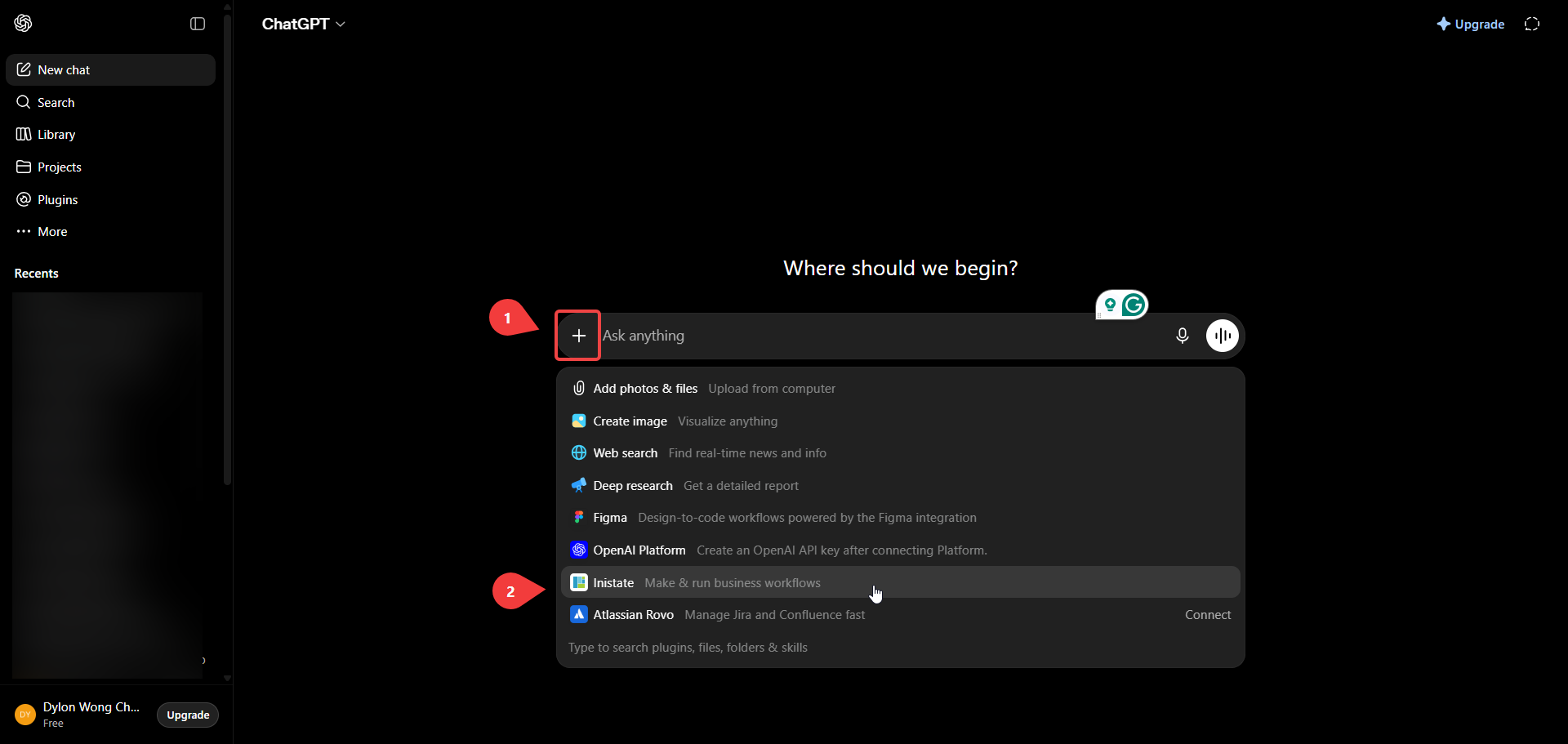
5. Verify it works
In the chat input bar, click the + button, select Inistate, and ask it to list workspaces. If your workspaces appear, the plugin is reconnected and ready to use.