Guide
How to fully restart and reconnect the Inistate connector in Claude Desktop.
Try these steps in order — this clears the old connection and sets up a fresh one, which resolves most connection and login issues.
Steps
1. Disconnect the old connector
-
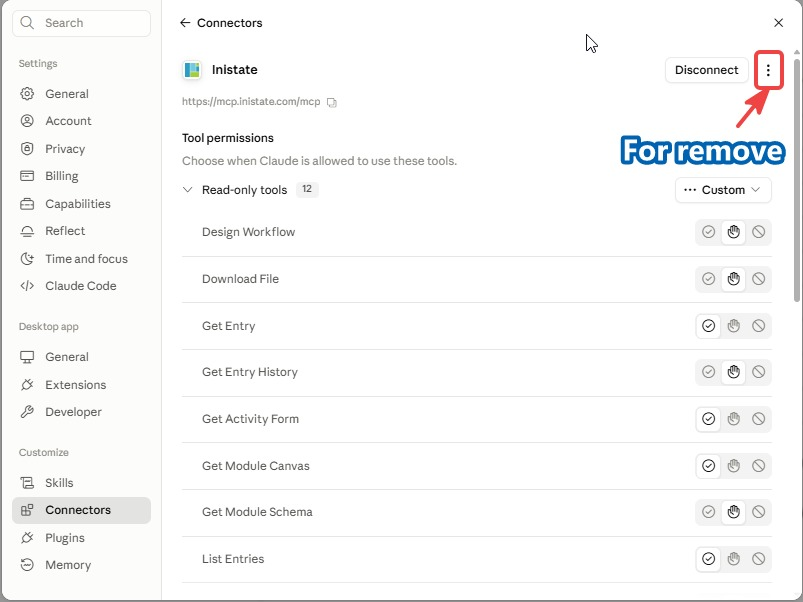
Open
Settings→Connectorsand open Inistate. -
Click
Disconnect. -
(Optional) Click the 3 vertical dots (top right) and choose
Remove.
Note: On the Teams plan the connector may be managed by your admin, so the
Removeoption won’t be available. That’s fine — justDisconnectand continue to the next step.
2. Quit Claude completely
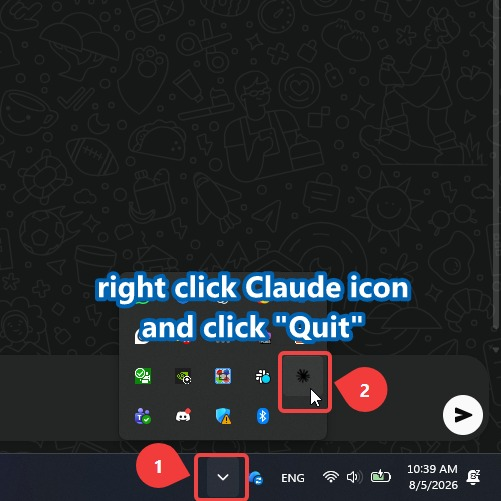
Closing the window is not enough — Claude keeps running in the background. Right-click the Claude icon in the system tray (bottom-right, you may need to click the ^ arrow to reveal hidden icons) and click Quit.
3. Reconnect the connector
-
Open Claude again.
-
Press
CTRL+,(comma) to open Settings. -
Click
Connectors.
If Inistate is still listed (you only disconnected it), just open it and click Connect.
If you removed it, add it again:
-
Click
Addat the top right. -
Click
Add custom connector. -
Fill in these values, then click connect:
NAME: Inistate
4. Log in with the correct account
-
When prompted, click
Use a different account. -
Log in again with your Inistate account.
-
You should be redirected back to Claude automatically.
5. Verify it works
Ask Claude:
list workspaces
If your workspaces appear, the connector is reconnected and ready to use.