Follow the steps below when Inistate displays an authentication QR code or setup key.
1. Android — Google Authenticator / Microsoft Authenticator
Step 1: Scan the QR code or copy the setup key
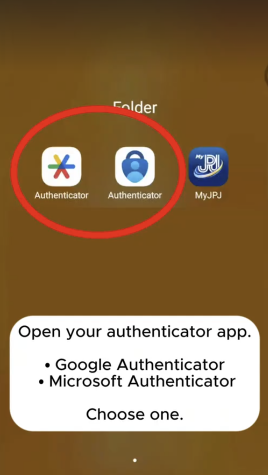
If the Inistate QR code is displayed on your computer, open Google Authenticator or Microsoft Authenticator on your phone.
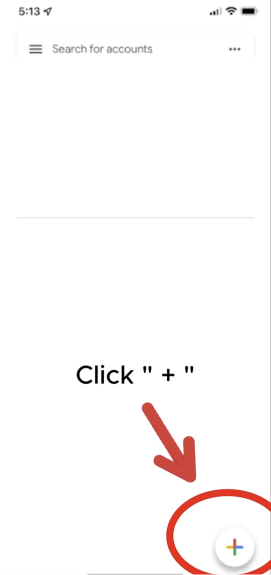
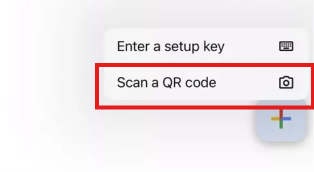
Tap + or Add account, select Scan a QR code, and scan it. Your account details will be added automatically.
If you are using Inistate on the same phone, tap the copy icon beside Setup Key in Inistate.
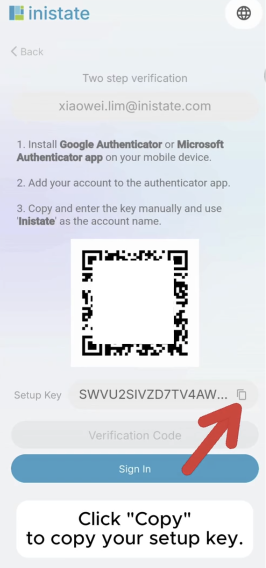
Then open Google Authenticator or Microsoft Authenticator and choose the option to add an account manually using a setup key.
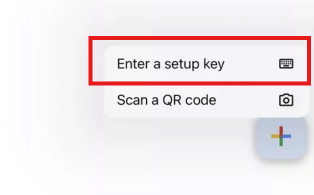
Step 2: Fill in the details for manual setup
If you selected the manual setup option, enter:
- Code name / Account name: Inistate
- Your key: Paste the setup key you copied from Inistate.
-
Type of key: Select Time based .
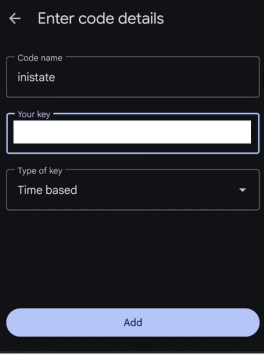
Tap Add or Save to save the account.
If you scanned the QR code, skip this step.
Step 3: Find the verification code
Find the Inistate entry in Google Authenticator or Microsoft Authenticator. It will display a six-digit verification code that changes periodically.
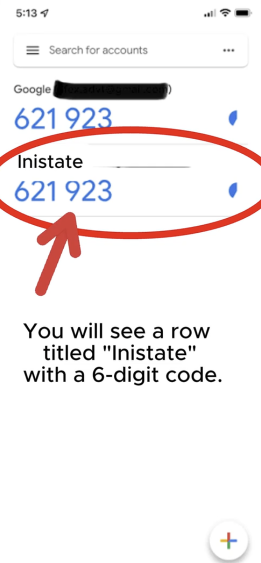
Step 4: Complete sign-in
Return to Inistate and enter the six-digit code in the Verification Code field. Tap Sign In.
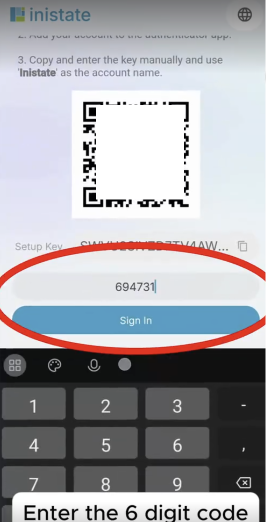
If the code expires before you submit it, use the latest code displayed in your authenticator app.
2. iOS — Apple Passwords
Step 1: Scan the QR code or copy the setup key
If the Inistate QR code is displayed on another device, such as a computer or tablet, open your iPhone’s Camera app and scan it.
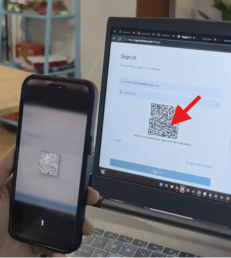
If you are using Inistate on the same iPhone, tap the copy icon beside Setup Key in Inistate. You will add this key to Passwords after selecting or creating your Inistate entry.
Step 2: Select or create your Inistate entry
If your Inistate account is already saved in Passwords, select it.
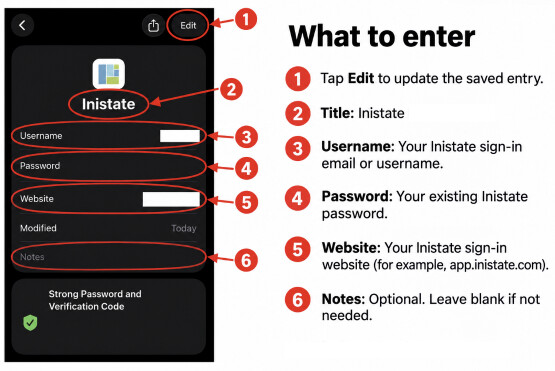
If you need to create a New Password entry, fill in:
- Title: Inistate
- User Name: Your Inistate sign-in email address or username
- Password: Your existing Inistate password
- Website: Your Inistate sign-in website, such as app.inistate.com
-
Notes: Optional—leave blank if not needed.
Step 3: Find the verification code
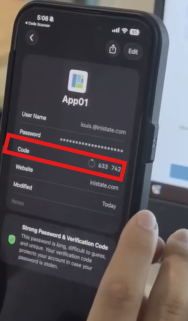
Open your saved Inistate entry in Passwords. Find the six-digit number under Code.
Step 4: Complete sign-in
Return to Inistate on your phone or computer. Enter the six-digit code in the Verification Code field, then tap or click Sign in.
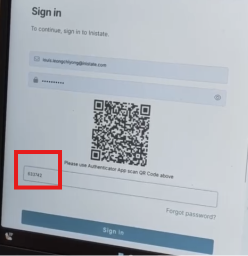
If the code expires before you submit it, use the latest code displayed in Passwords.