Guide
How to setup remote mcp in Gemini
Steps
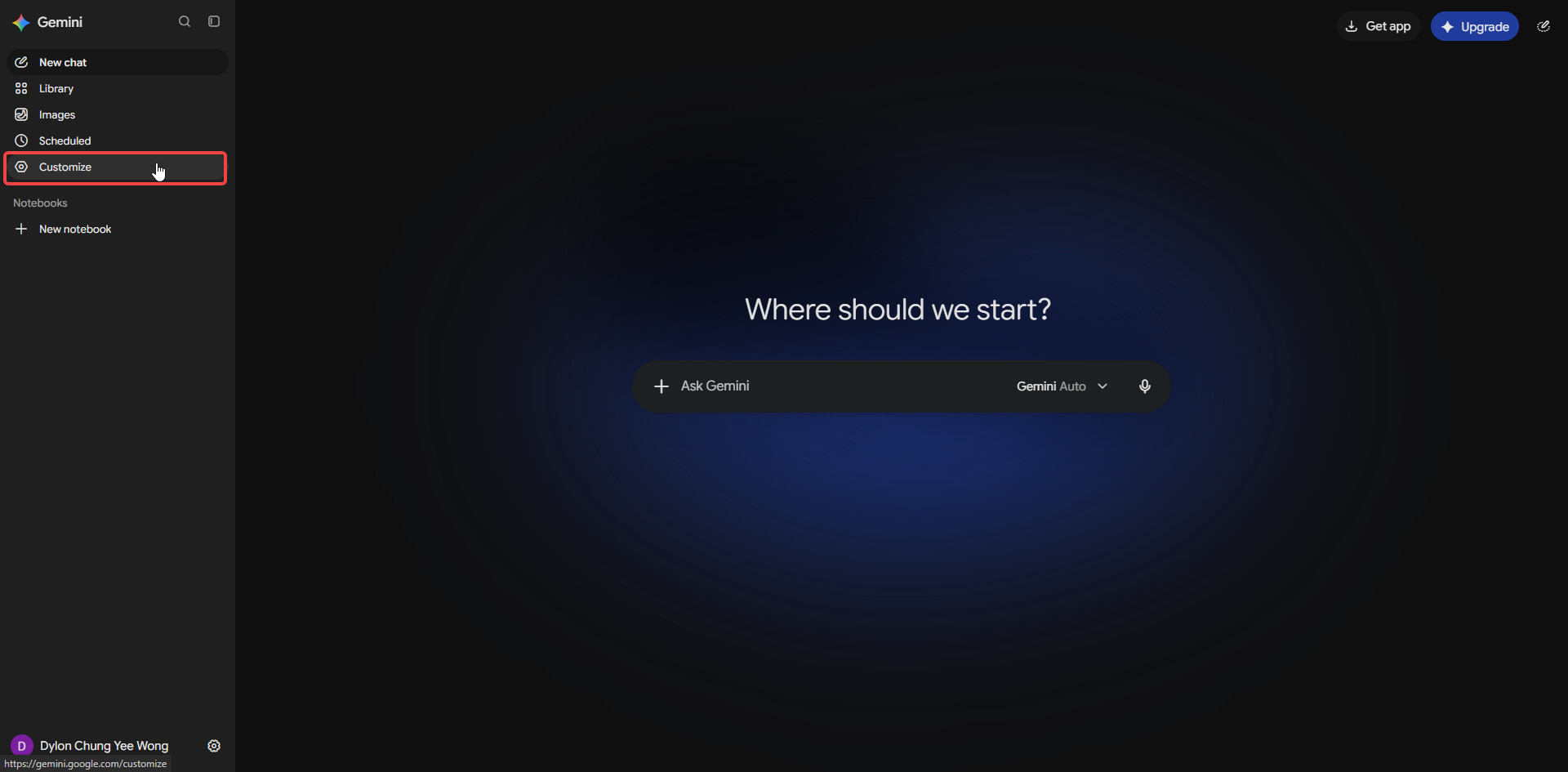
- Open Gemini and click Customize in the left sidebar.
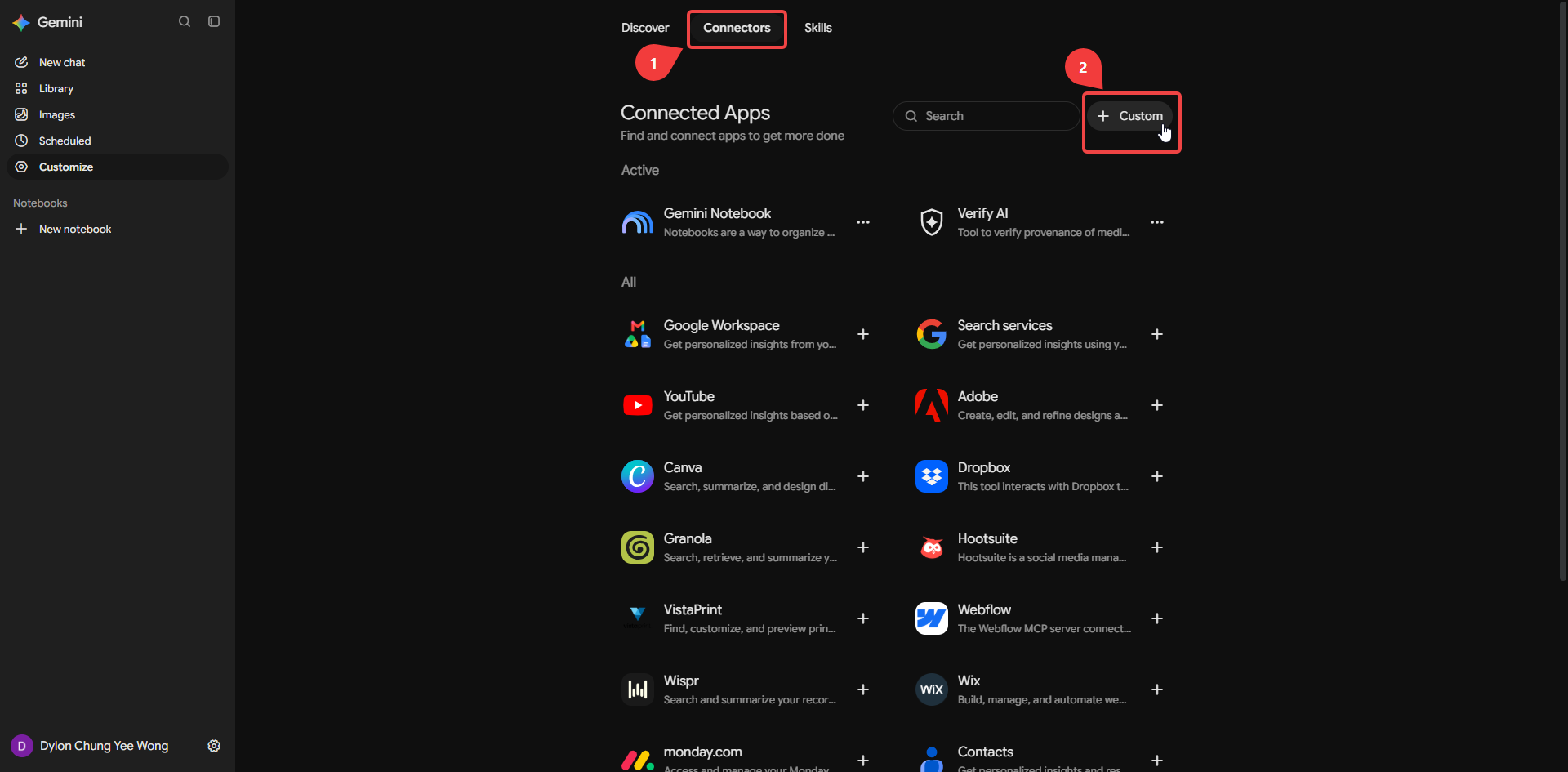
- Go to the Connectors tab (1), then click + Custom (2).
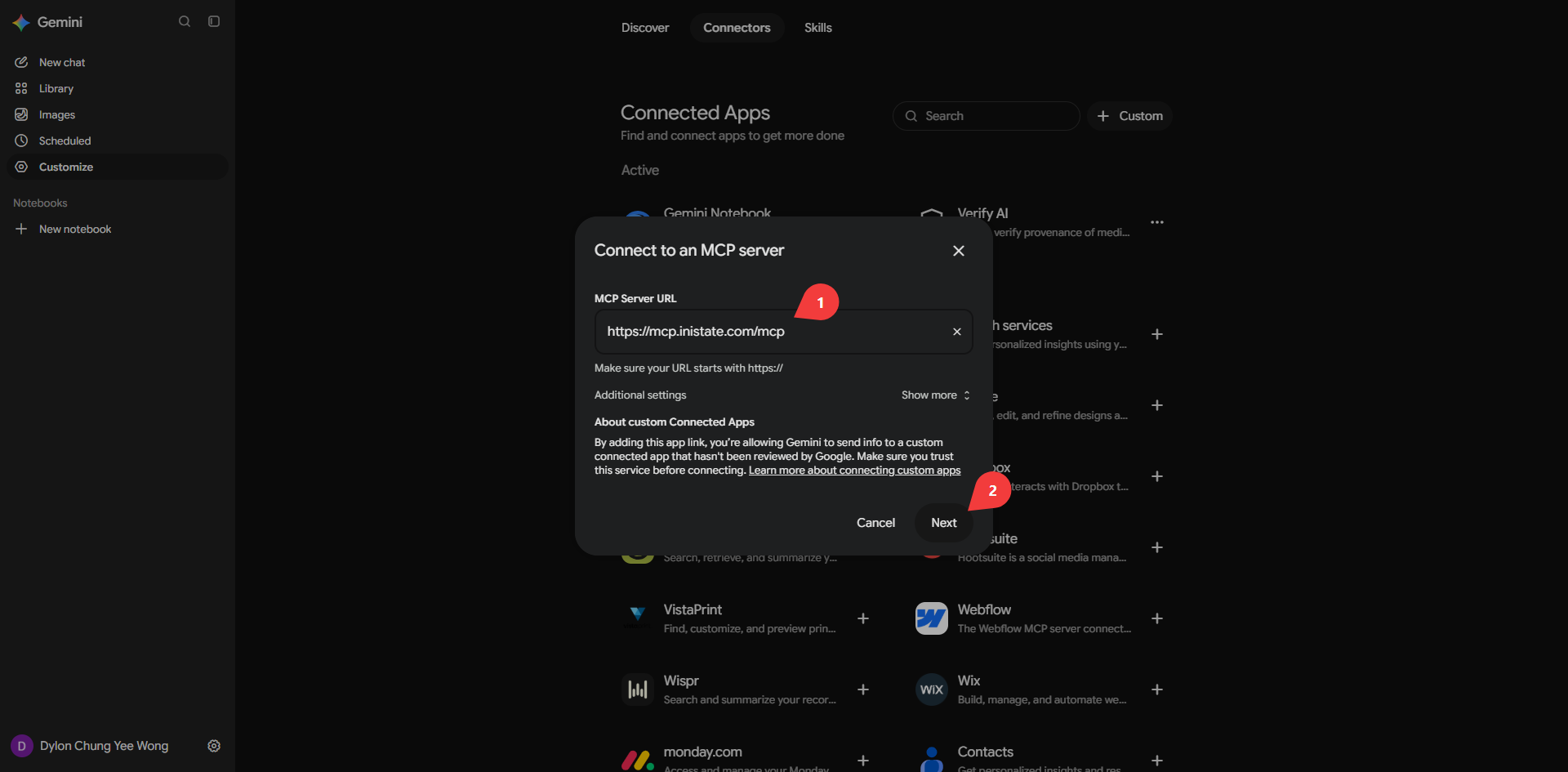
- In the Connect to an MCP server dialog, enter the MCP Server URL (1) and click Next (2).
https://mcp.inistate.com/mcp
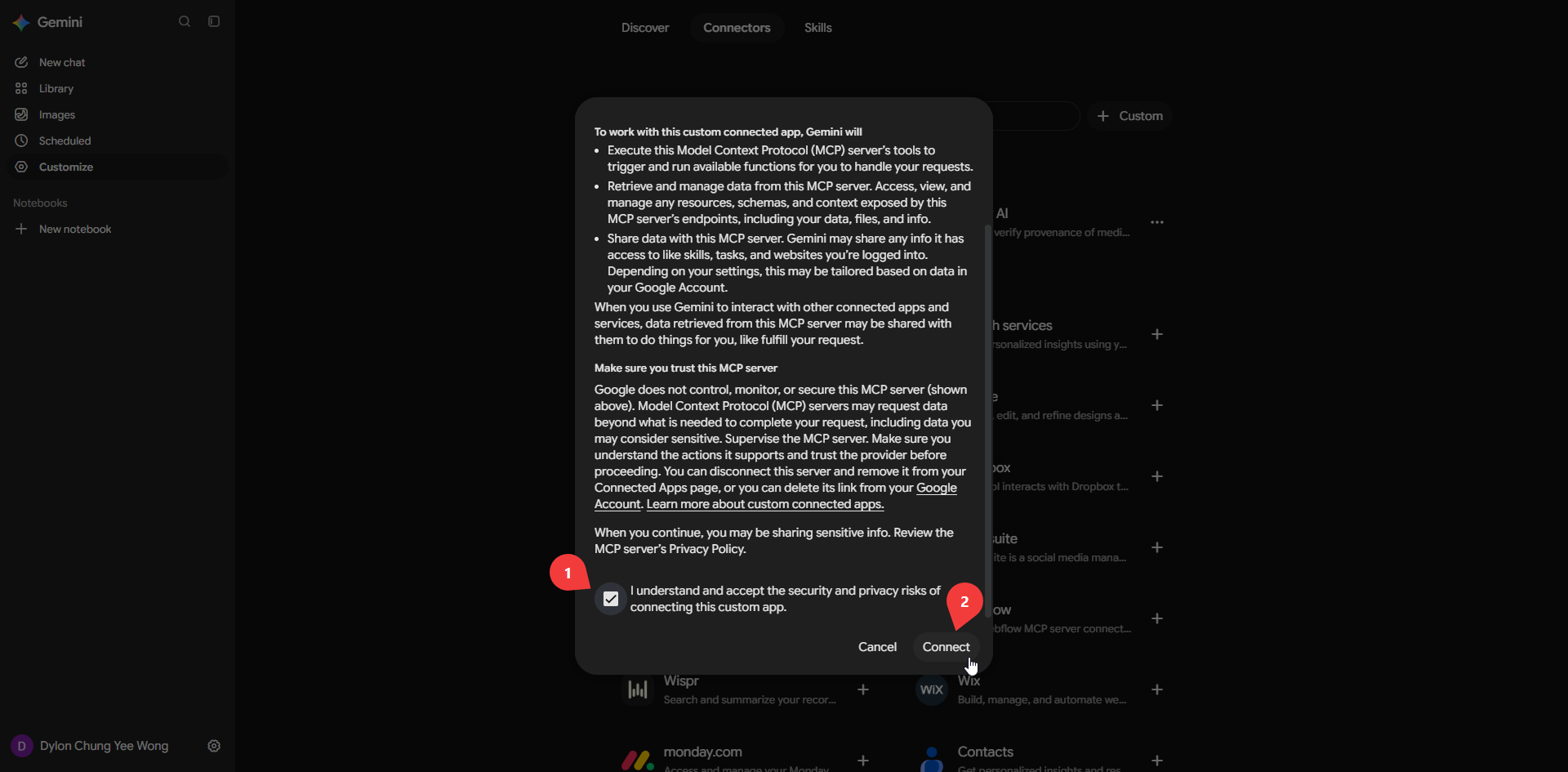
- Tick I understand and accept the security and privacy risks of connecting this custom app (1), then click Connect (2).
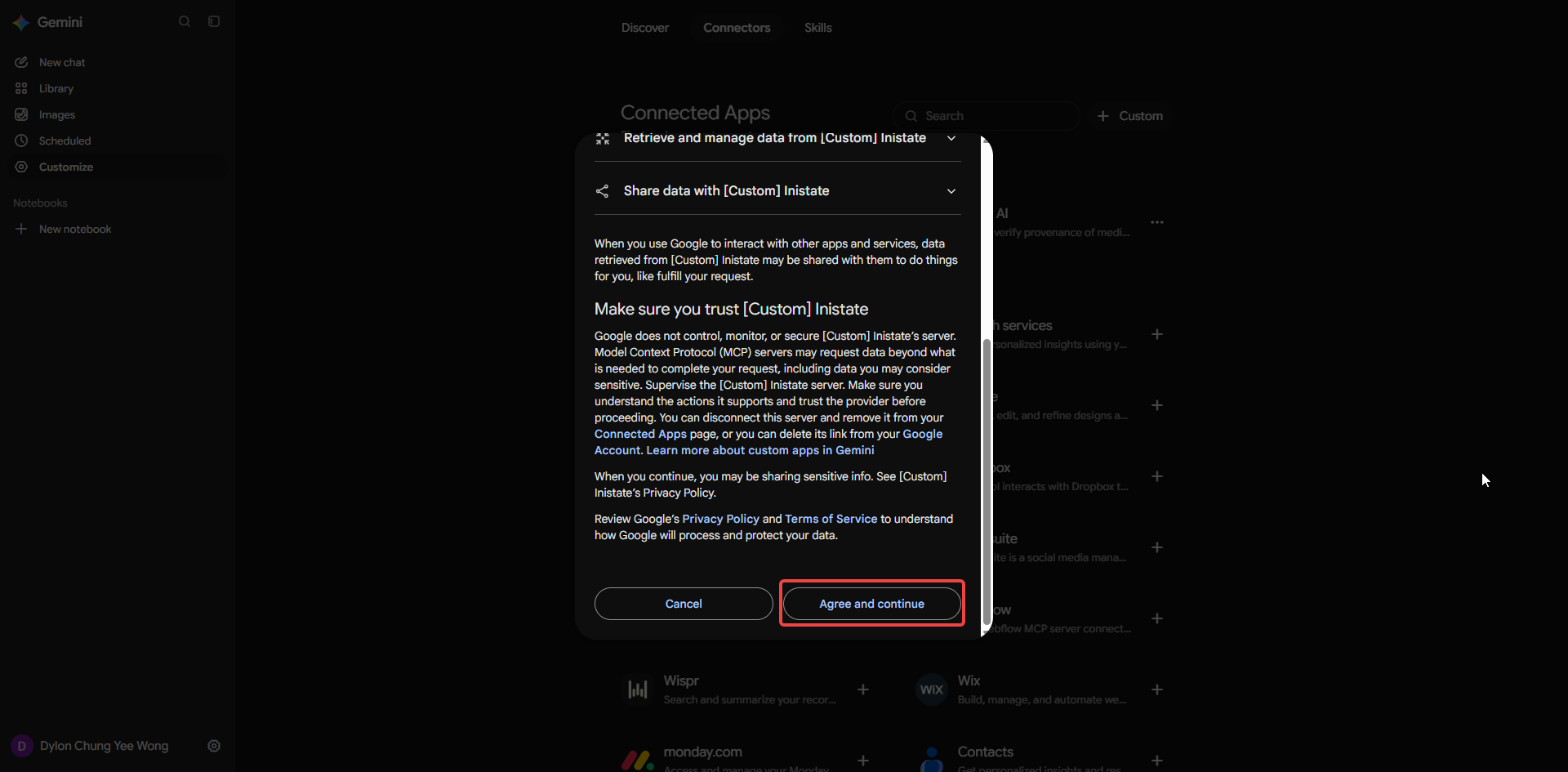
- Review Google’s notice, then click Agree and continue.
- Log in or authorize
You will be redirected to Inistate.
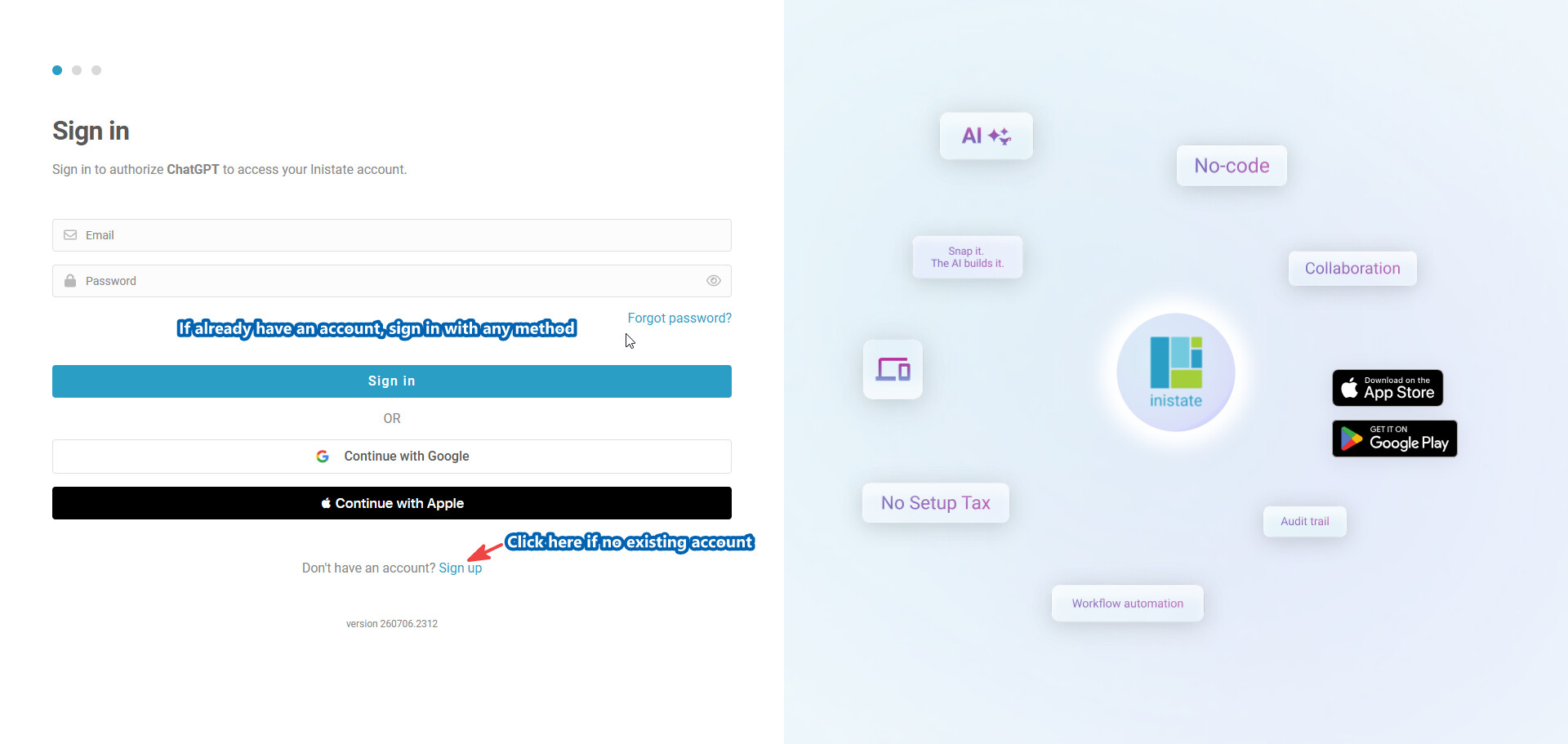
If you are not signed in, log in with any method (email/password, Google, or Apple). If you don’t have an account yet, click Sign up.
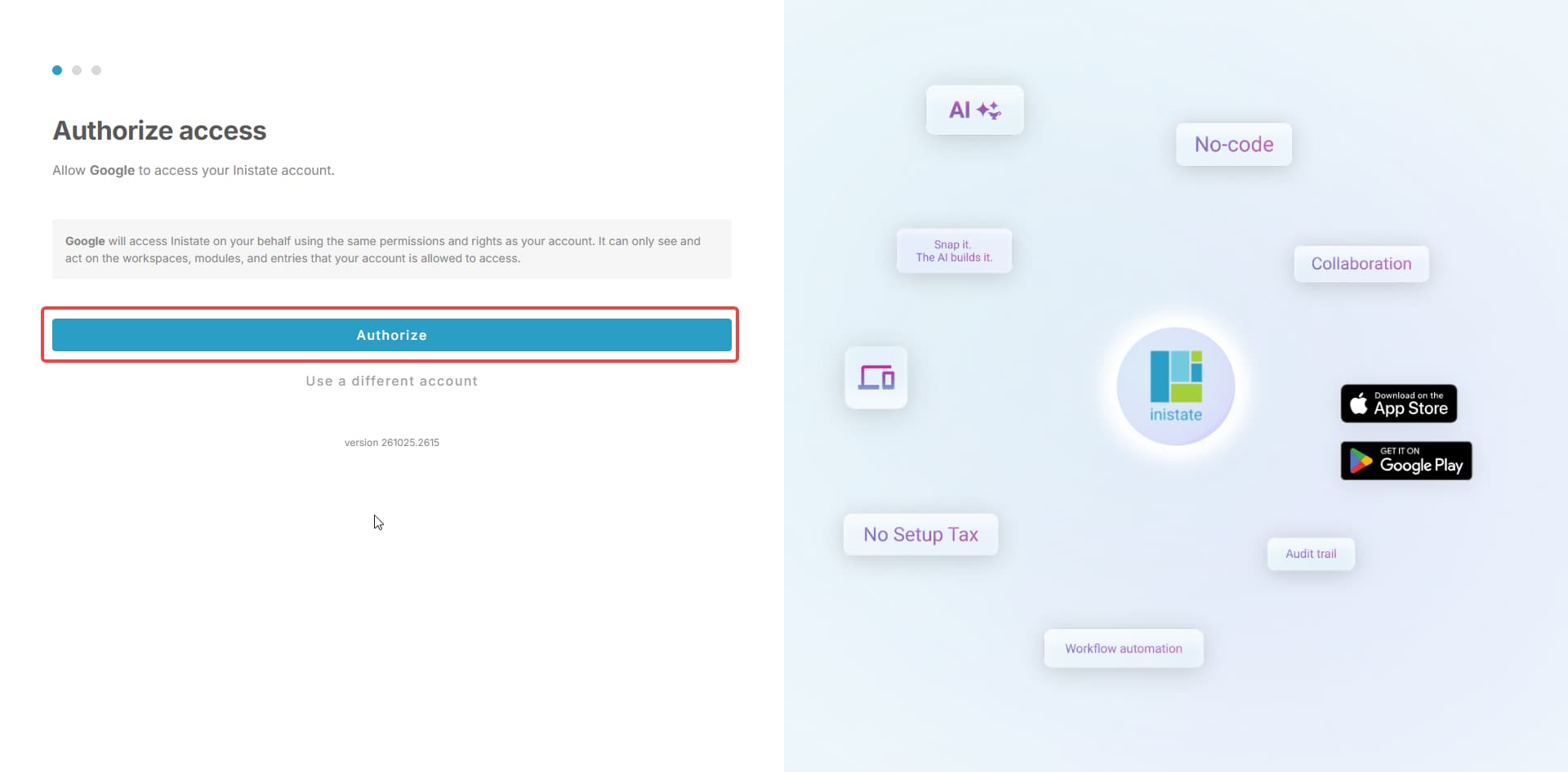
If you are already signed in, you’ll instead see the authorize screen. Click Authorize to allow Google to access your Inistate account.
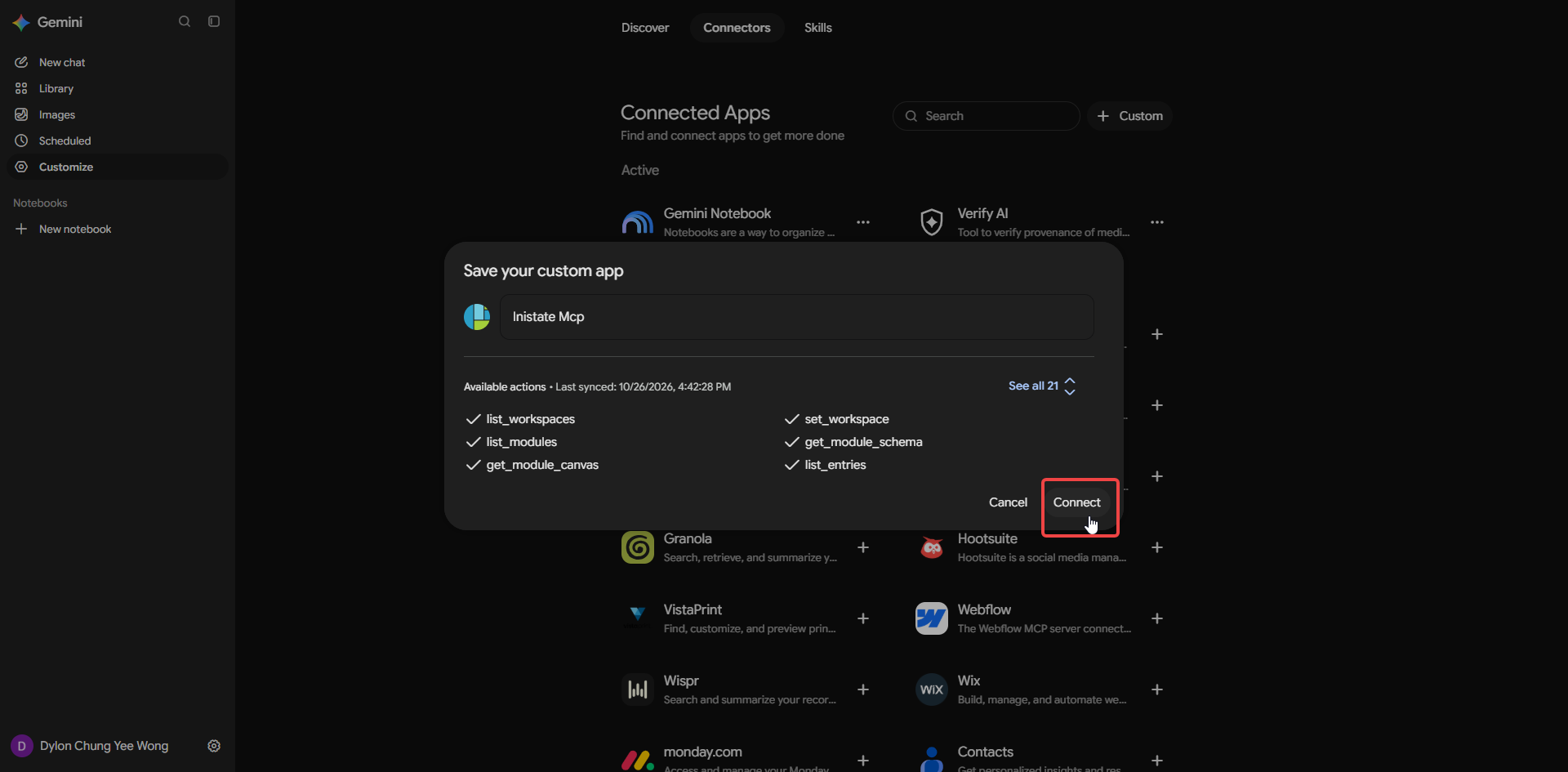
- Save the connection
Back in Gemini, the Save your custom app dialog lists the available actions (21 tools). Optionally rename the app, then click Connect.
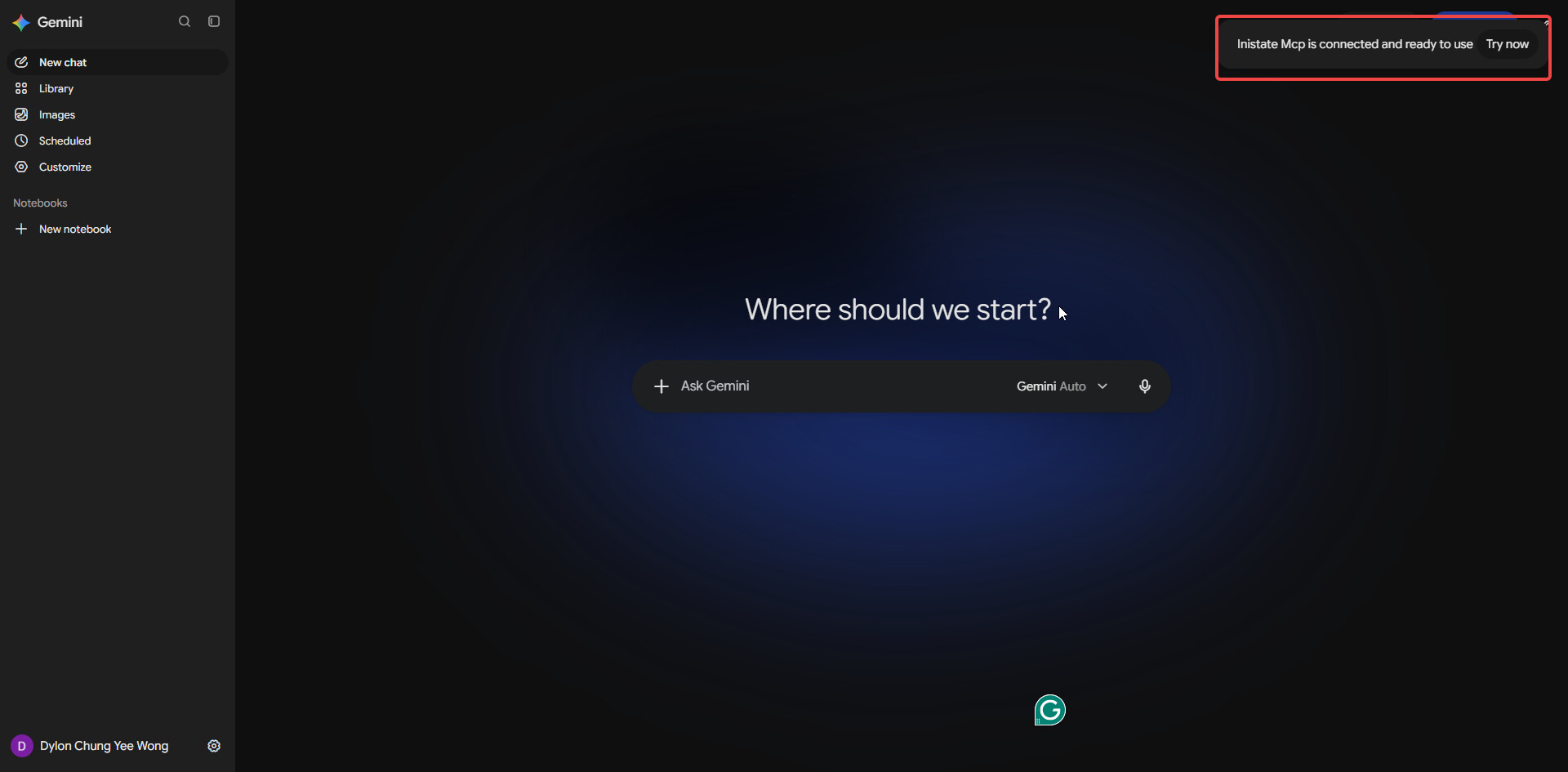
- Connected
Once connected, you shall be brought back to Gemini with a toast saying “Inistate Mcp is connected and ready to use”.
Usage
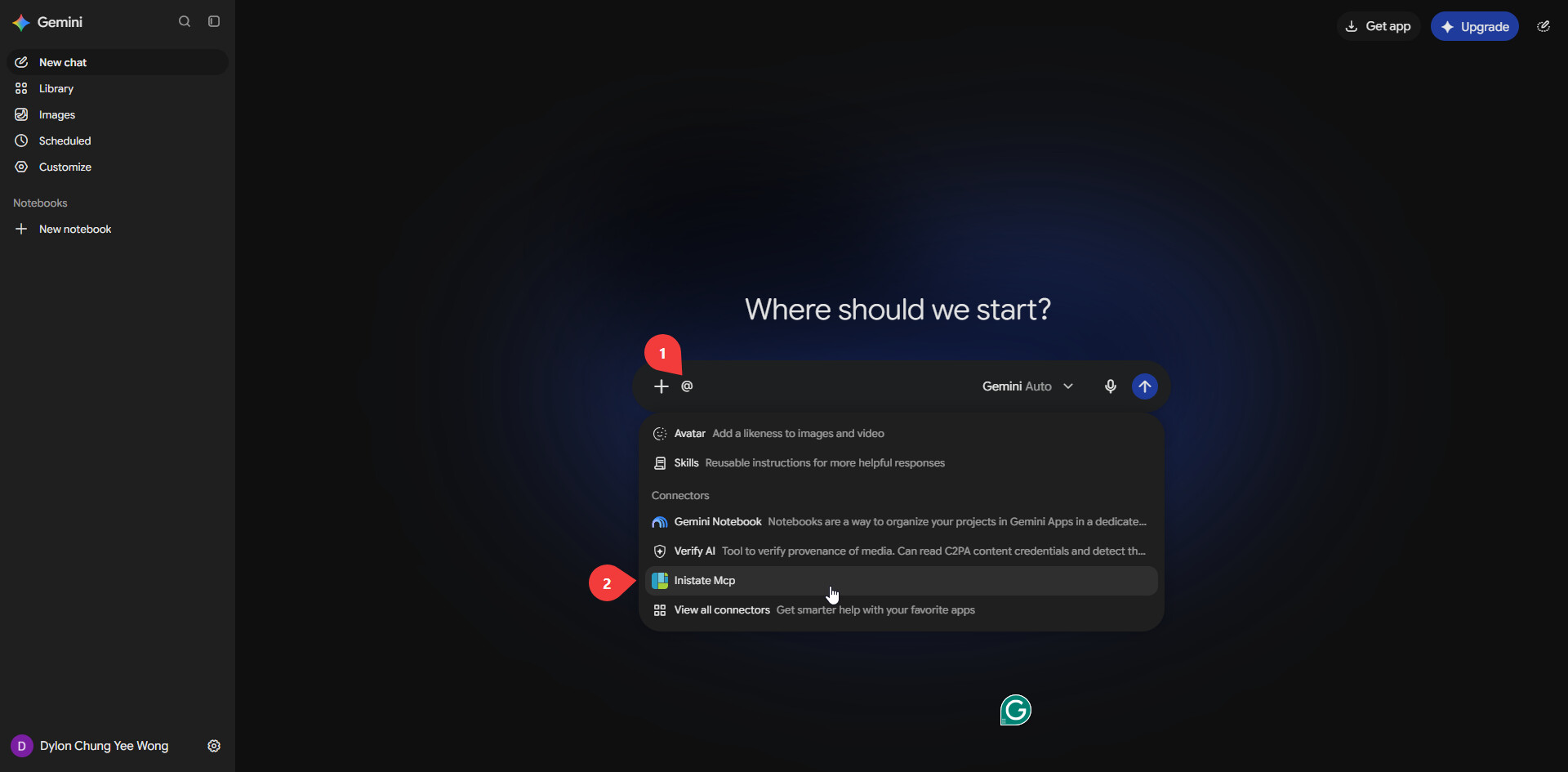
- In a new chat, type
@(1) and select Inistate Mcp from the Connectors list (2).
- Type your request after the connector name, for example
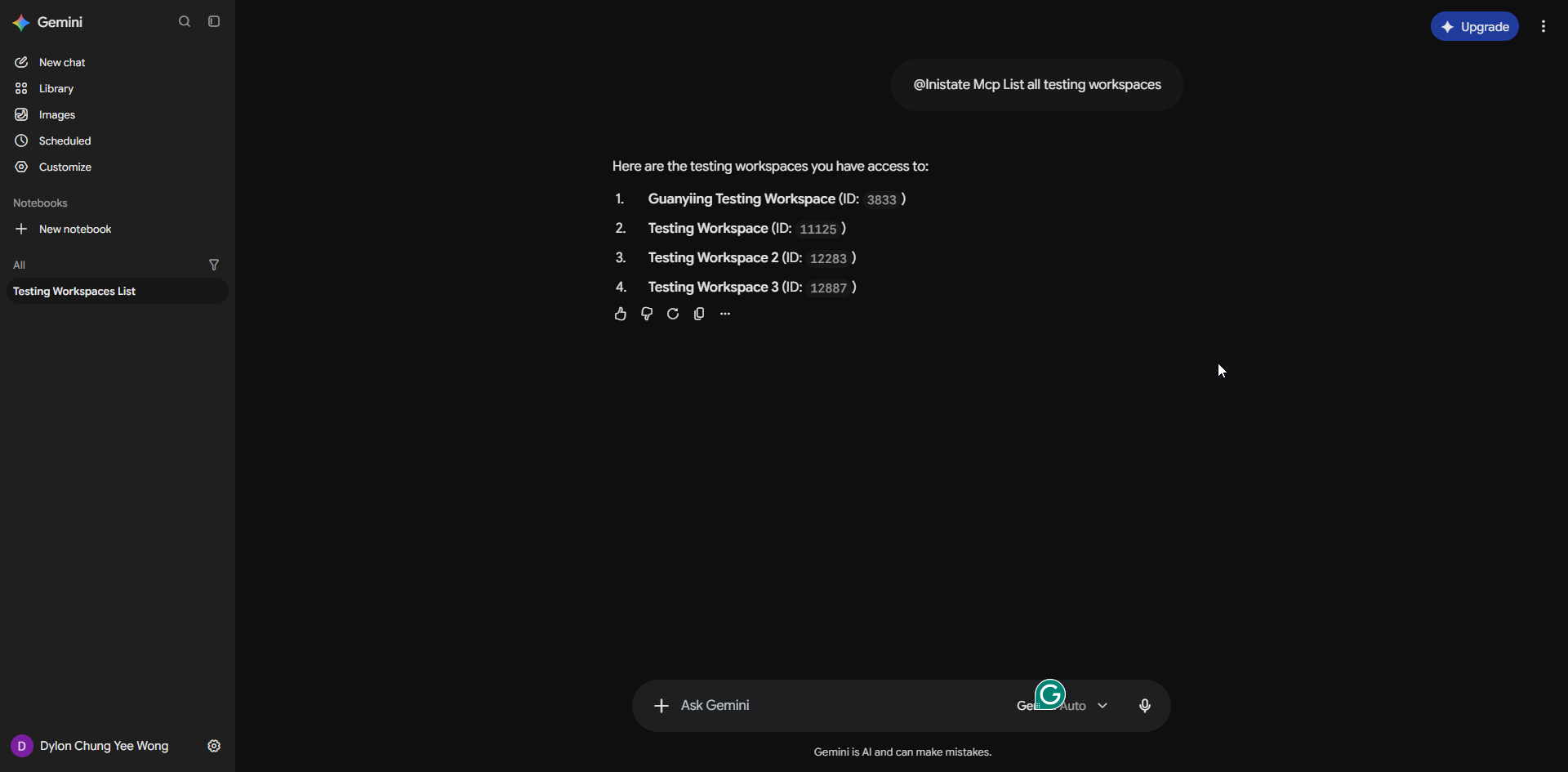
@Inistate Mcp List all testing workspaces.