A repair can take days, but the notification workflow only needs to run when something happens.
One approach is to start an n8n execution when the ticket opens, then use a Wait node or repeated status checks until the repair is resolved. However, using a Wait node can keep an execution active for a long time and consume resources, while repeated status checks may create unnecessary API requests.
In this example, Inistate stores the ticket’s status throughout the repair. When the ticket changes to Resolved, n8n starts a separate run, sends the notification and finishes. The repair can stay open for days without keeping that notification execution waiting.
A simple example
An issue is reported in Inistate and moves through these states:
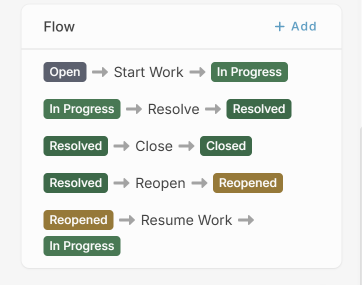
Open → In Progress → Resolved → Closed
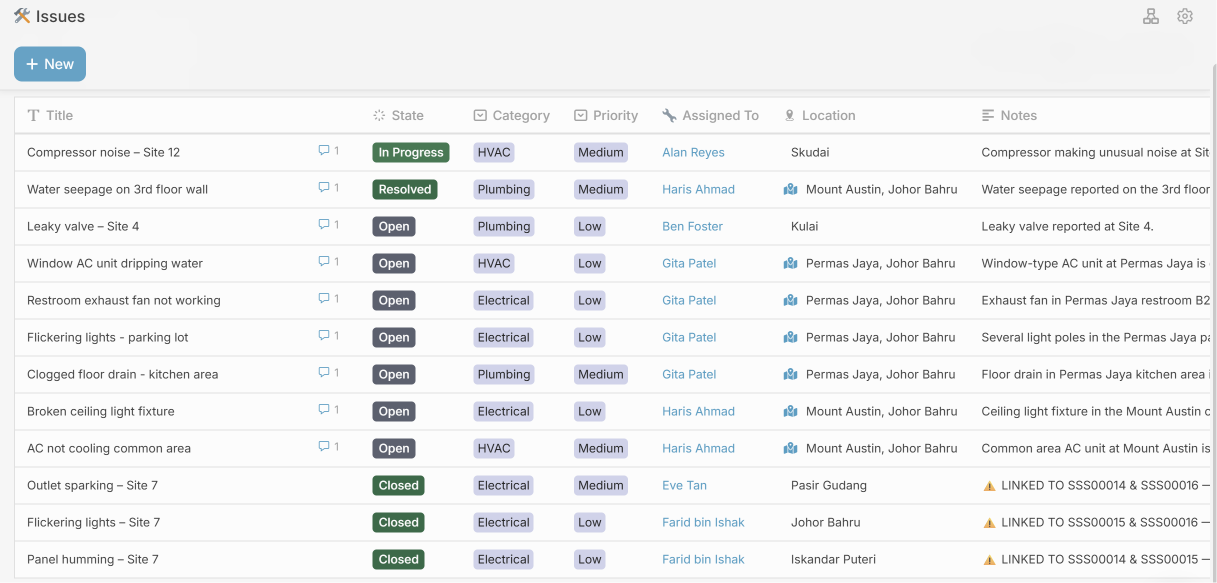
When the technician performs Resolve , the ticket changes to Resolved , and the State Changed trigger starts the n8n notification workflow.
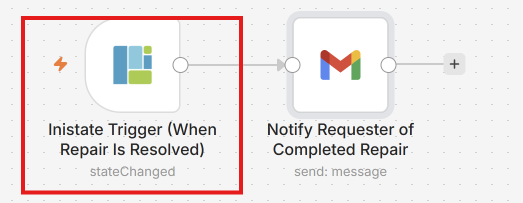
When Repair Is Resolved → Notify Requester of Completed Repair
How to set it up
- Set up the repair process in Inistate.
Create the states Open, In Progress, Resolved and Closed, with the actions needed to move between them.
- Configure the Inistate Trigger in n8n
Add an Inistate Trigger node and select your Inistate credential.
For this example, configure the following:
- Trigger On: State Changed
- Workspace: Your workspace name
- Module: Your module
- Change: To State
- State: Resolved
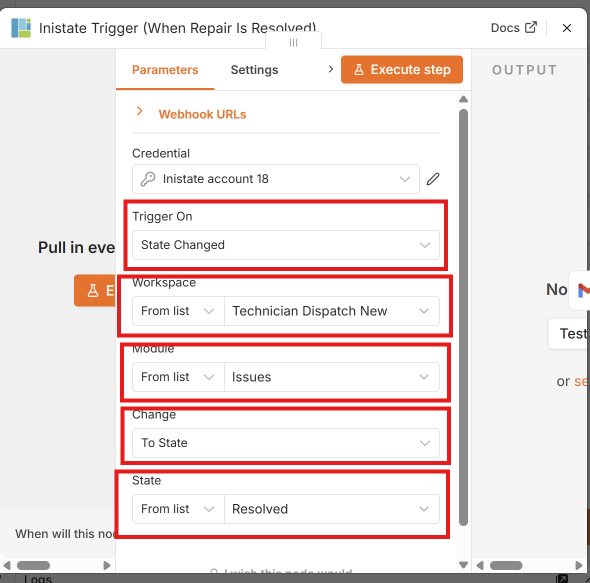
The Resolved condition is configured directly in the Inistate Trigger node. This makes the notification workflow run when an issue changes to Resolved.
- Configure the email notification
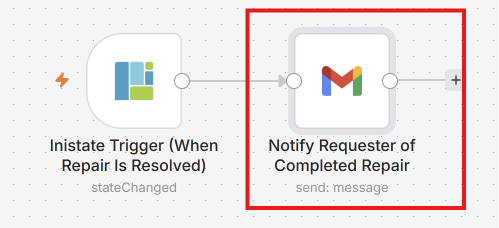
Connect the Inistate Trigger to a Gmail node.
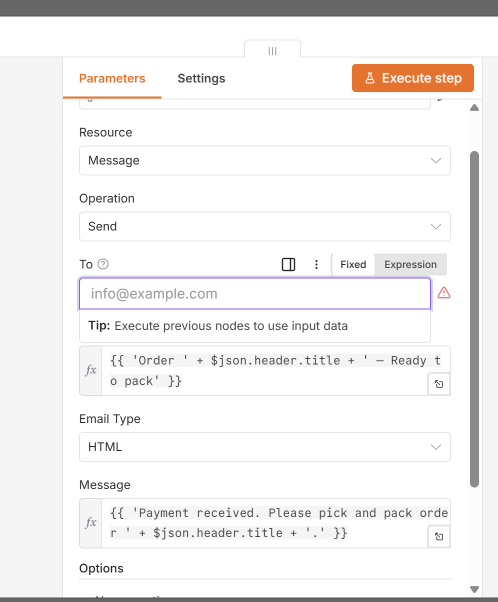
For testing, enter your own email address in the To field. To notify the actual requester, map this field to the requester’s email address from the Inistate trigger output.
Change the subject and message to match the repair process. For example:
Subject: Repair resolved — {{Ticket No}}
Message:
Hi {{Requester Name}},
Your repair ticket {{Ticket No}} has been marked as resolved.
Repair details:
{{Repair Summary}}
Please check whether the issue is fixed and let us know if more work is needed.
View ticket: {{Ticket Link}}
Replace the placeholders with the corresponding fields from the trigger output. Include a ticket link that the requester has permission to access.
- Test the workflow
Use a test ticket to check the complete flow:
After the repair is resolved
The requester receives an email asking them to check whether the issue is fixed.
If the requester has access to the Close and Reopen actions in Inistate, they can close the ticket when the repair is satisfactory or reopen it when more work is needed.
If a reopened ticket later changes to Resolved again, that state change can trigger another notification.
Inistate manages the repair status, while n8n handles the notification when the relevant change happens.
The same approach can apply to approvals, leave requests, purchase orders, and onboarding—processes that take time and involve people.
Which process would you use this approach for?