Hi Inistate Community! 
Let’s take a look at how to use Inistate with n8n to manage an email draft.
We can save the generated email draft into Inistate first and move the record to Pending Approval.
This allows Inistate to handle the state management, while the workflow follows a simple state machine:
Draft → Pending Approval
It also works well for a long-running process because the workflow can stop at Pending Approval and wait for a human to continue the process later.
Setup
Before starting, here is the module for the email request:
Configure the states as:
Draft → Pending Approval
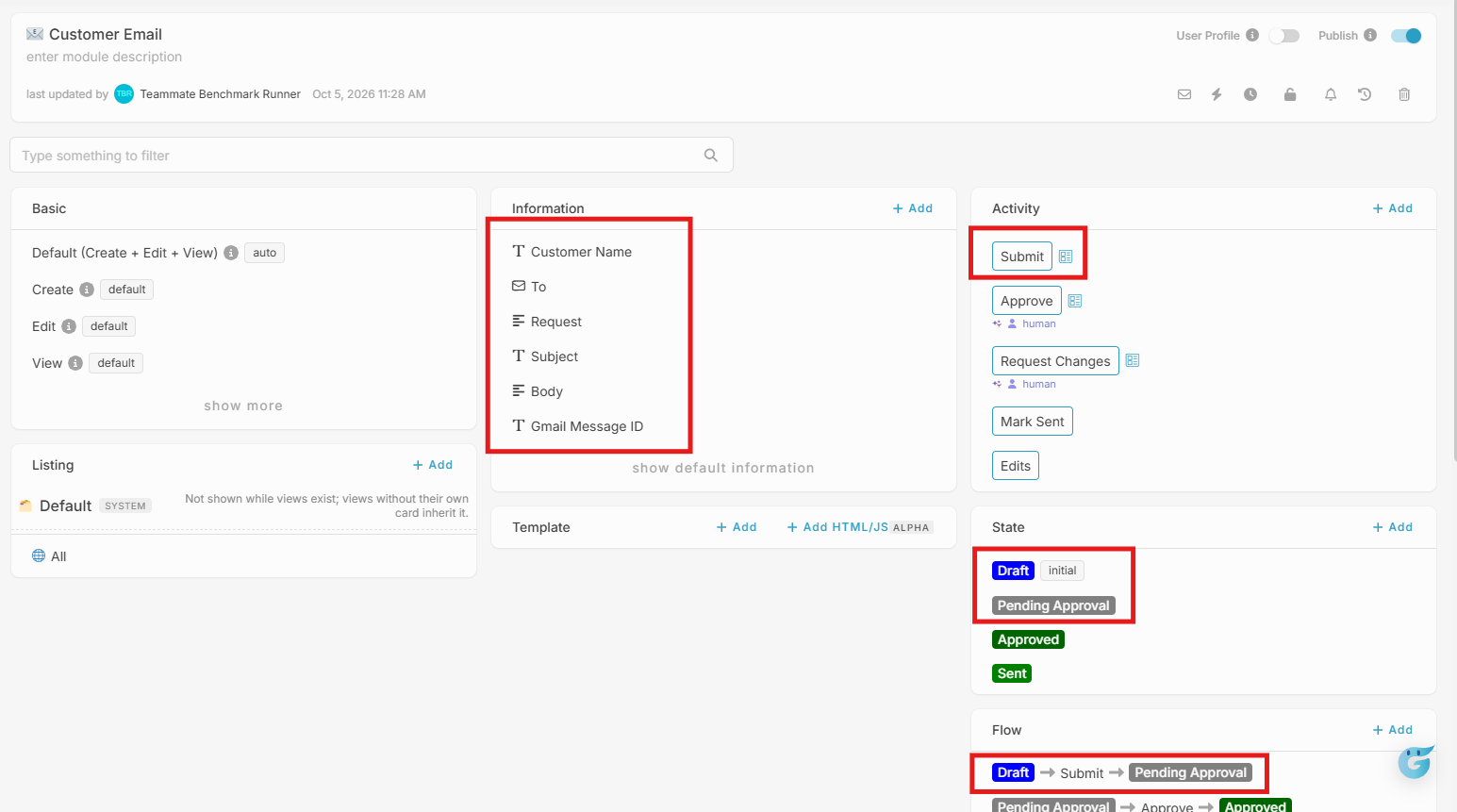
Then, we can start building the workflow in n8n.
1. Trigger the workflow
Create a trigger in n8n to start the workflow when a new email request is created.
Trigger choose: On entry created
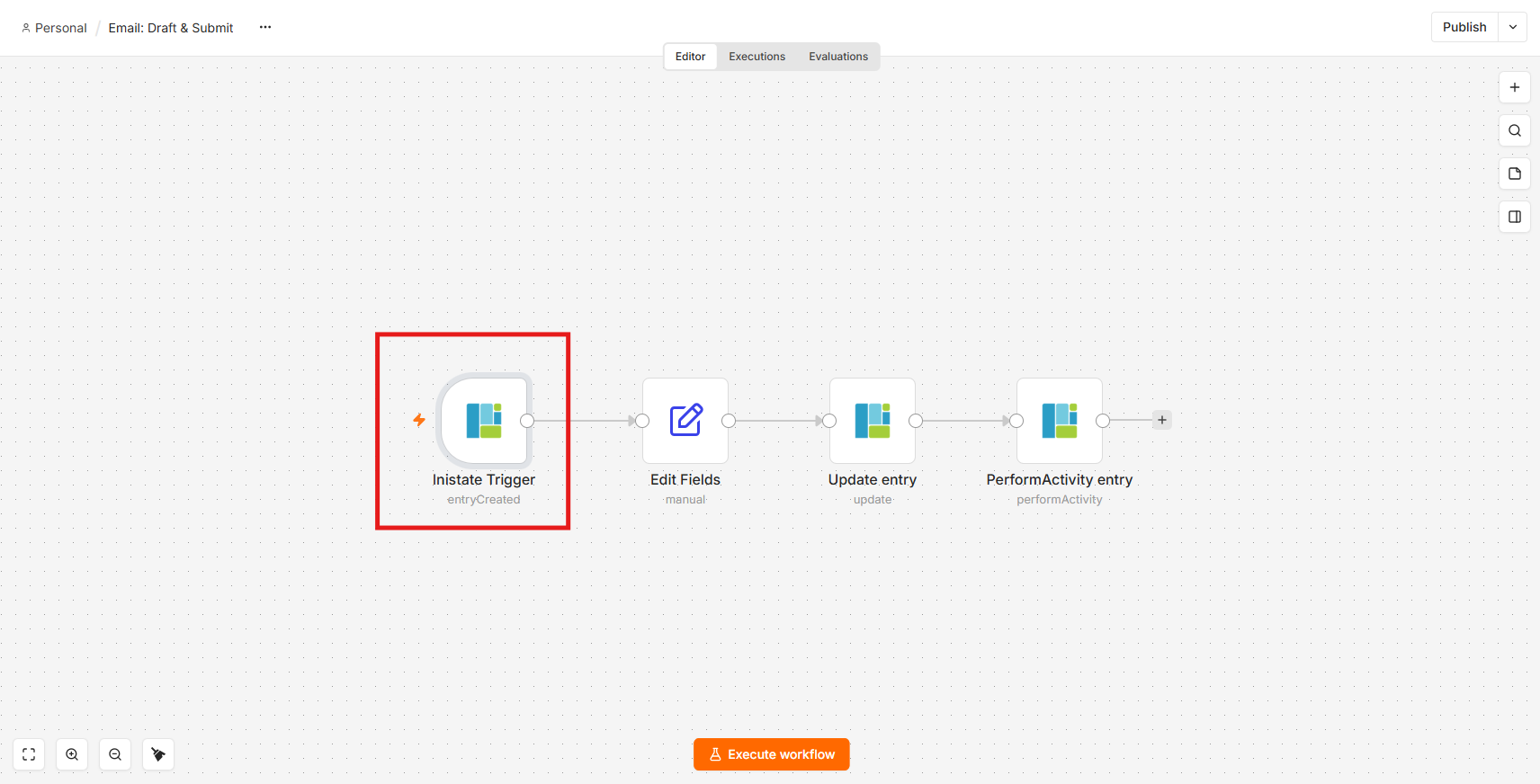
2. Prepare the email draft
Use n8n to prepare the email content based on the request.
For example:
Subject: Installation Appointment Confirmation
Body:
Hi Customer,
Your installation appointment has been confirmed for Monday at 9:00 AM.
Please let us know if you need to make any changes.
Thank you.
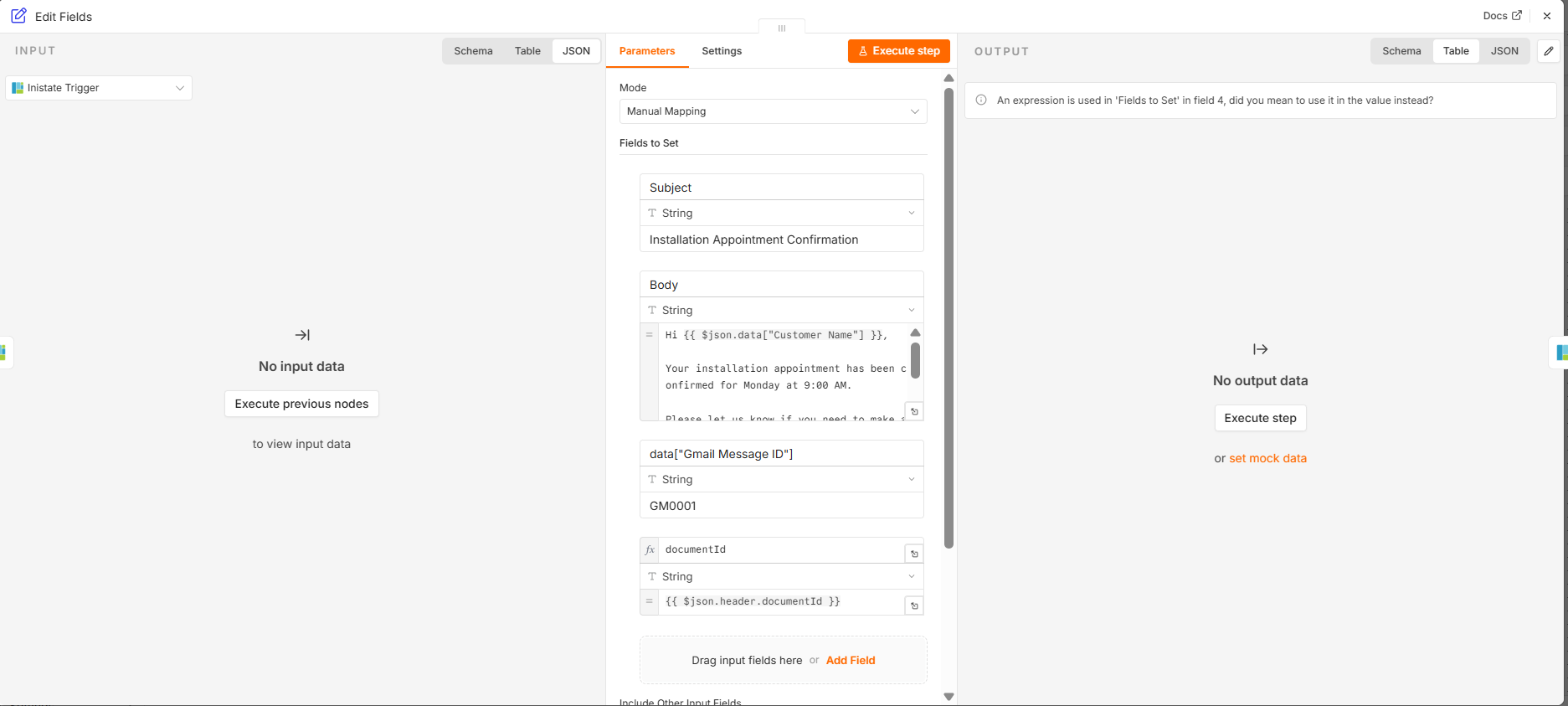
3. Write the draft back to Inistate
Add the Inistate node in n8n and update the same record.
Action choose: Update an entry
Map the generated email content into:
- Subject
-
Body
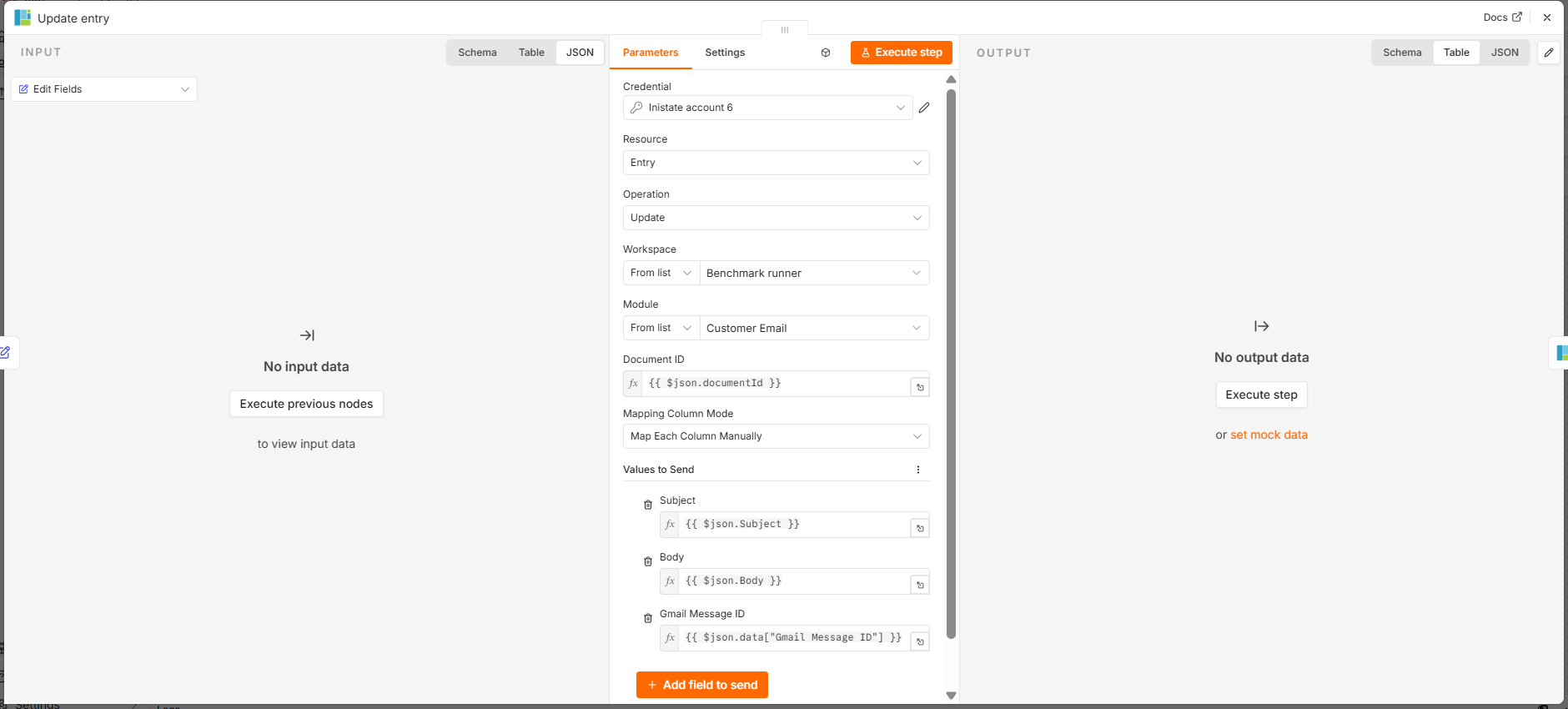
Now, the email draft is stored directly in the Inistate record.
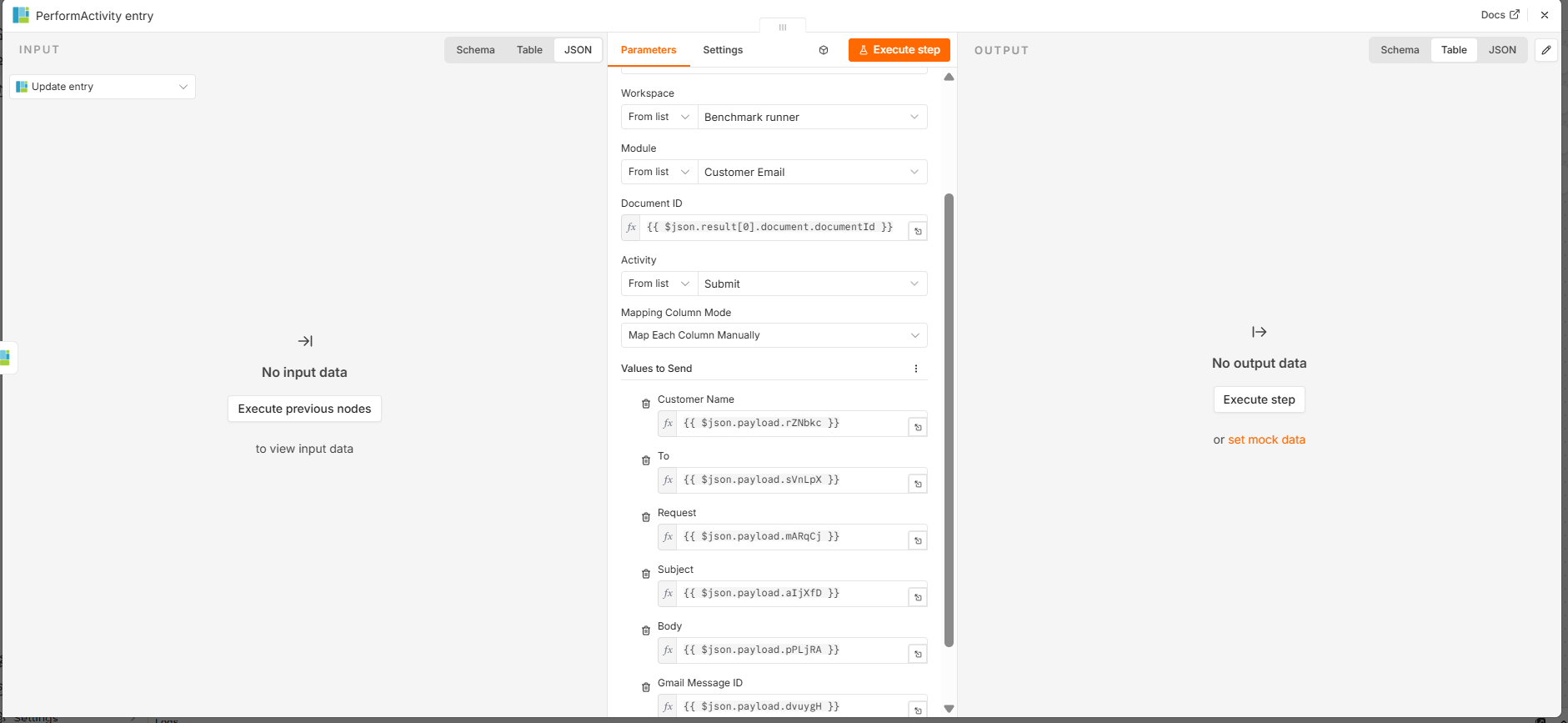
4. Change the state to Pending Approval
After saving the draft, use the Inistate node to change the record state from:
Draft → Pending Approval
Trigger choose: On activity performed
Result
Now the email draft is available inside Inistate for review, and the record is clearly shown as Pending Approval.
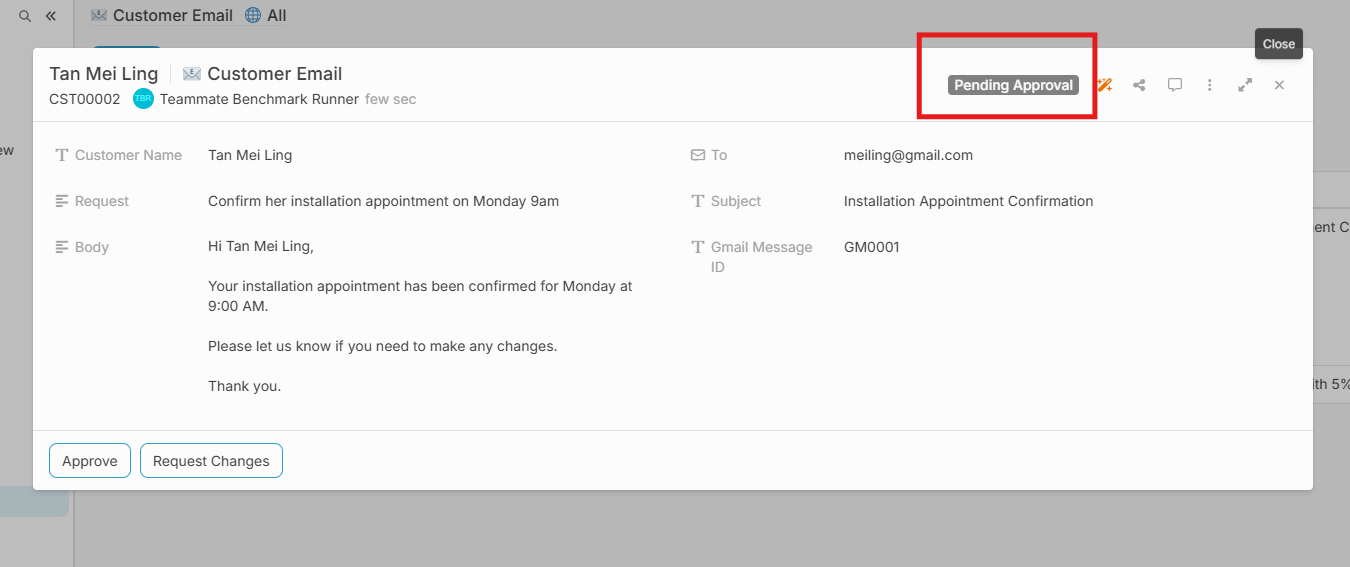
The state machine controls the transition from Draft to Pending Approval, while Inistate provides state management by keeping the current state and email content.
Because the record can remain in Pending Approval until someone reviews it, this can also support a long-running workflow without keeping the same n8n execution running.
The next step can continue only after a human approves the email.