In this tutorial, we’ll connect Inistate to Gmail using n8n. When a record changes to Rejected, a new n8n run starts and sends an email notification.
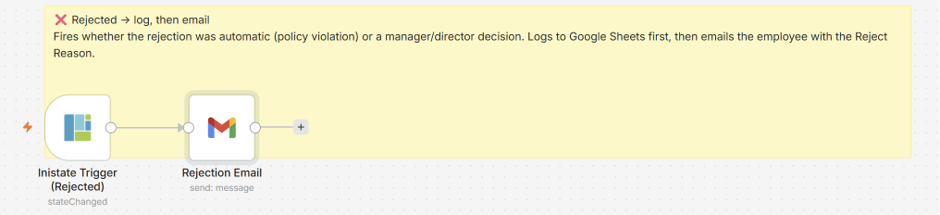
- Connect the two nodes
-
Add an Inistate Trigger node and a Gmail node.
-
Connect the output of the Inistate Trigger to the input of the Gmail node.
-
The flow is:
State changes to Rejected → Send an email
- Connect your Inistate account
-
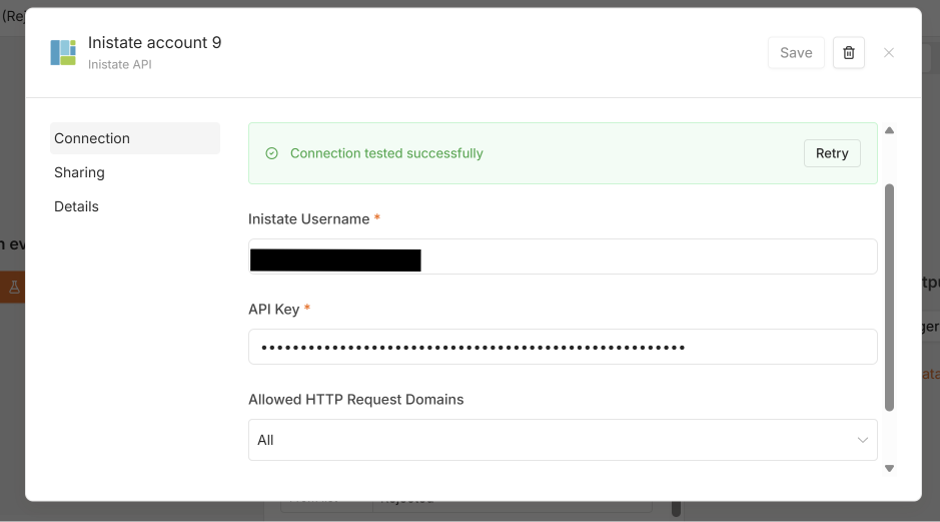
Open the Inistate Trigger. Under Credential, create a new connection or select an existing one.
-
Fill in:
Inistate Username: Your Inistate username.
API Key: Your Inistate API key. -
Save the connection and check that the connection test succeeds. Keep your API key private.
- Choose the state to watch
-
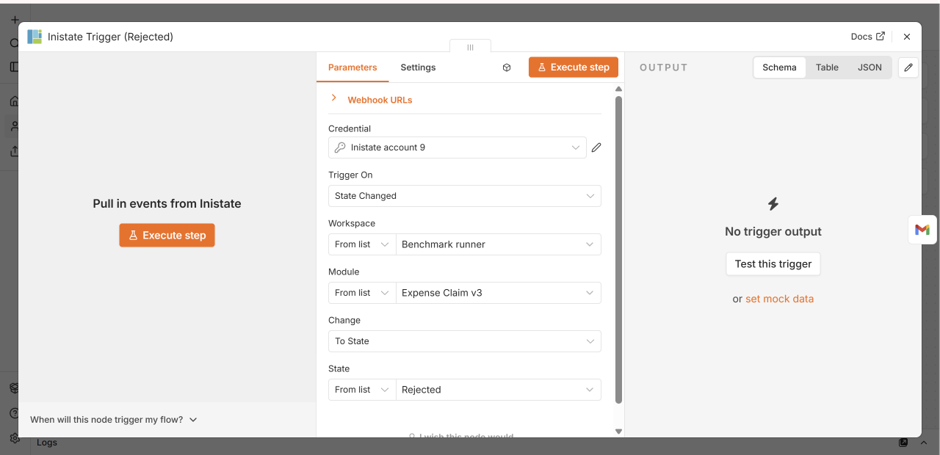
Set Trigger On => State Changed, Change => To State, and State => Rejected.
-
This tells n8n to start the workflow when a record in that module moves to Rejected, so it can send the email notification.
- Connect your Gmail account
-
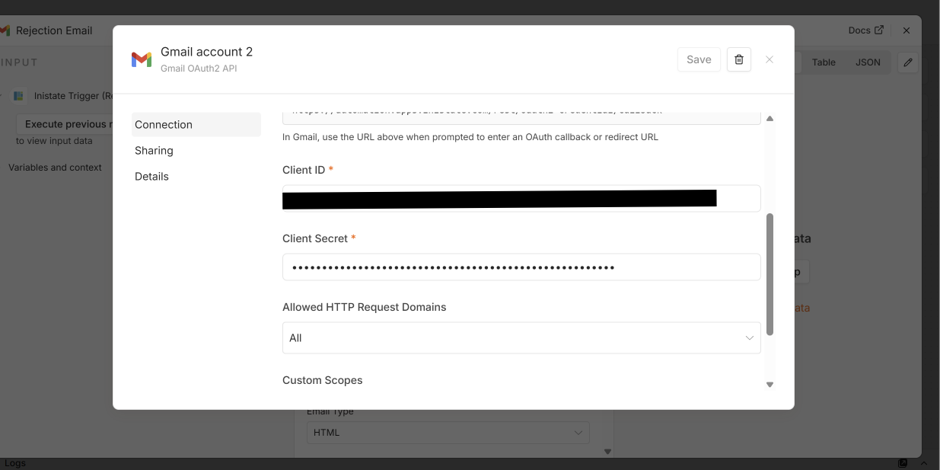
Open the Gmail node. Under Credential, create a new Gmail connection or choose an existing one.
-
If you use n8n Cloud and see Sign in with Google, use it to connect your account.
-
If your screen asks for a Client ID and Client Secret, as shown here:
-Create or choose a project in Google Cloud Console.
-Enable the Gmail API.
-Configure the OAuth consent screen. Add your Google account as a test user if the app is in external testing mode.
-Create an OAuth client ID with the application type Web application.
-Copy the OAuth Redirect URL from n8n into Google’s Authorised redirect URIs.
-Copy the Google Client ID and Client Secret into n8n.
-Click Sign in with Google, complete the connection, and save. -
See the official n8n Google connection guide for the full setup.
- Fill in the email settings
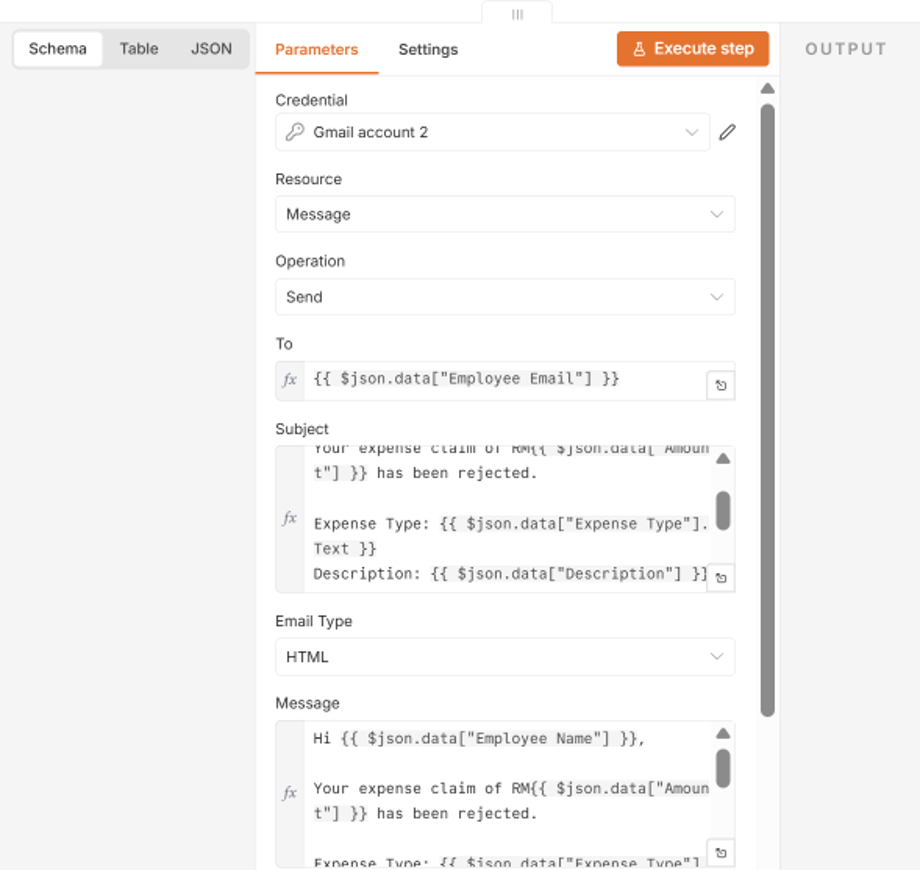
- Set:
Credential: Select the Gmail account you want to use to send the email.
Resource: Choose Message to work with email messages.
Operation: Select Send to send a new email.
To: Enter the recipient’s email address.
Subject: Enter the title of the email.
Email Type: Select HTML if you want to format the message using HTML.
Message: Enter the content of the email
- Test the workflow
After testing, publish or activate the workflow.
This tutorial shows n8n state management with Inistate. Inistate stores the record’s status, and n8n sends an email when it changes to Rejected.