Set up a schedule in Studio to remind someone before a task is due
How to set it up
-
Open your module in Studio and click Add Schedule.
-
Name: Enter a name.

-
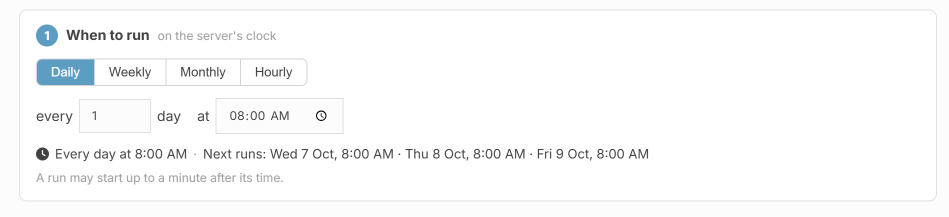
When to run: Choose how often the schedule should check for matching entries and what time it should check. For example, choose Daily and set the time to 8:00 AM so it checks every day at 8:00 AM.
-
Find entries where
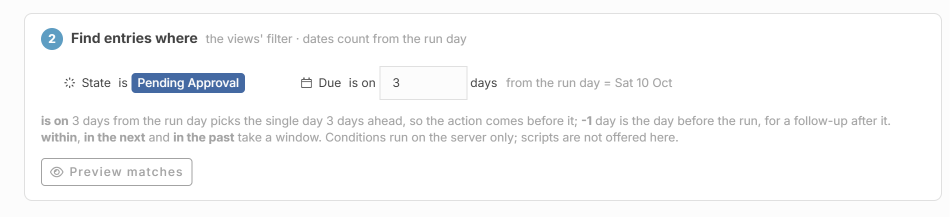
In this example, we want to send a reminder 3 days before the due date, but only for entries waiting for approval.
Set these two conditions:

- State is Pending Approval: Only remind entries that still need approval.
- Due is on 3 days from the run day: Find entries due exactly three days after the schedule checks.
For example, if the schedule checks on 7 October, it finds entries due on 10 October and sends the reminder on 7 October.
You can apply this to your own case. Choose the state that needs a reminder, such as your unpaid payment state and select the relevant due date field.
Change 3 to 1 for a one-day reminder, 7 for a one-week reminder, or 30 for a 30-day reminder. Thirty days may differ from one calendar month.
-
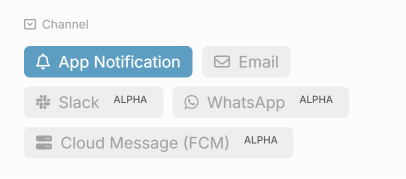
Channel: Choose App Notification or Email.