Hi Inistate community!
Let’s take a look on how to Set Assign To and Due Date.

Assign To (without Due Date)
- Edit the form design either in Default (Create + Edit + View) or an Activity.
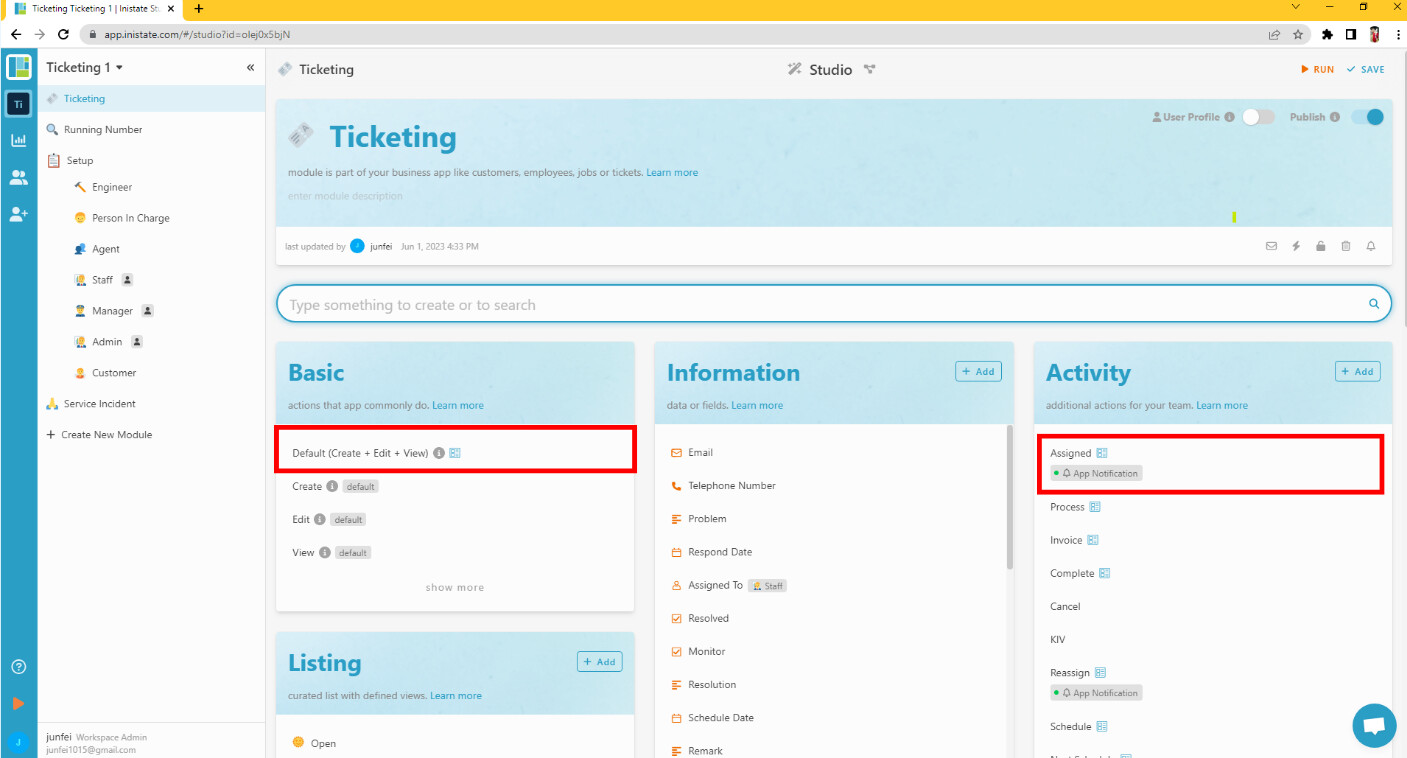
- Add an information which Information type is User and select a Module of user in the form.
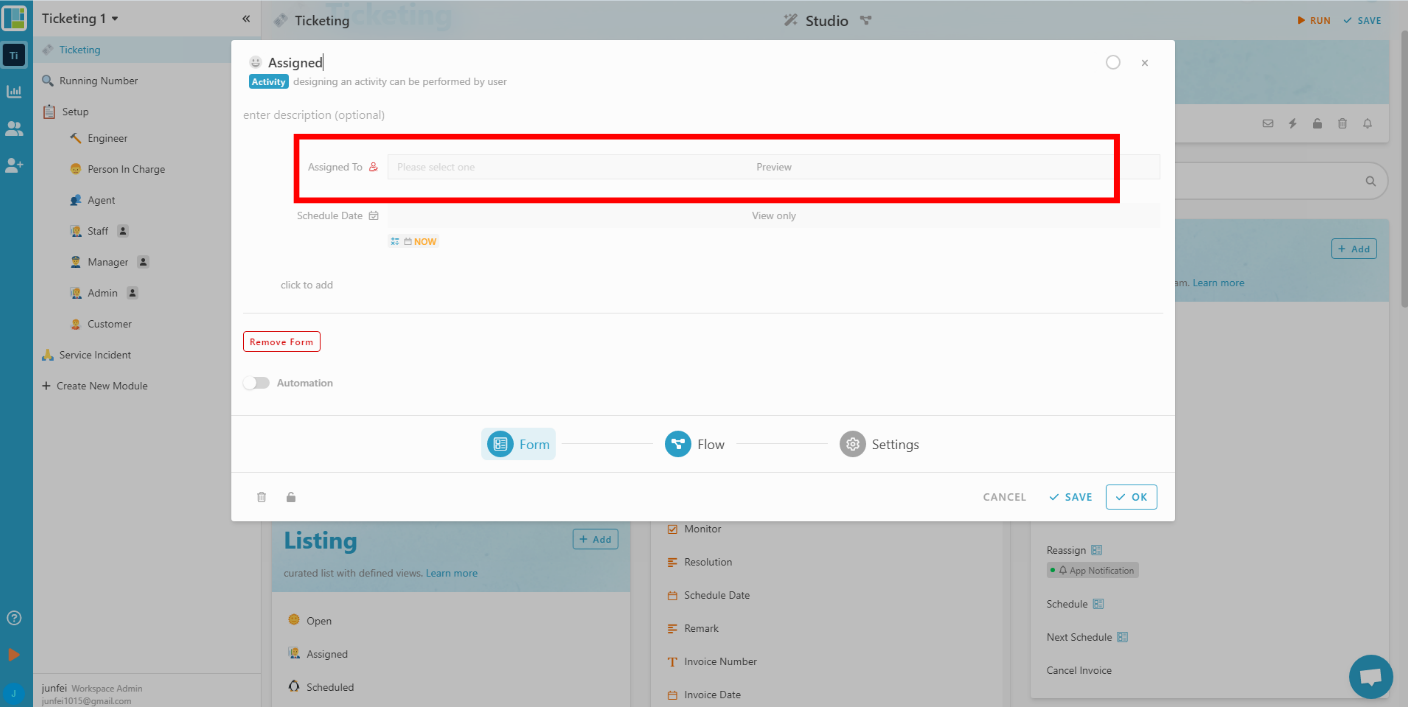
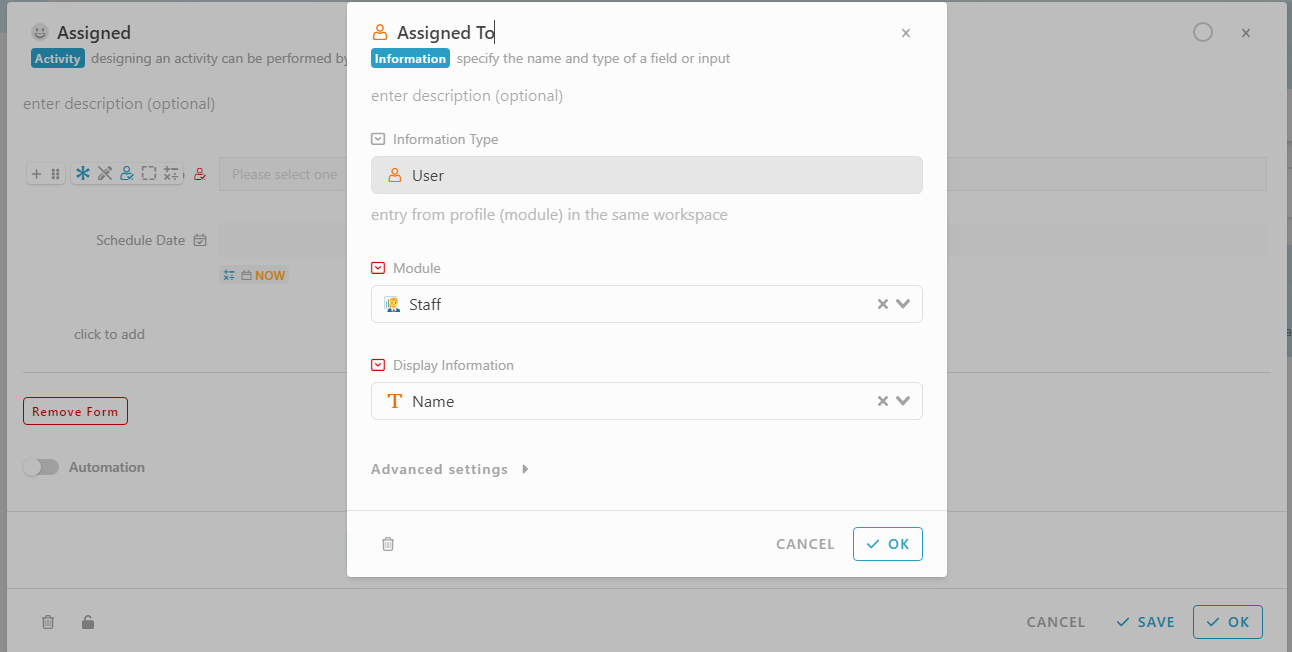
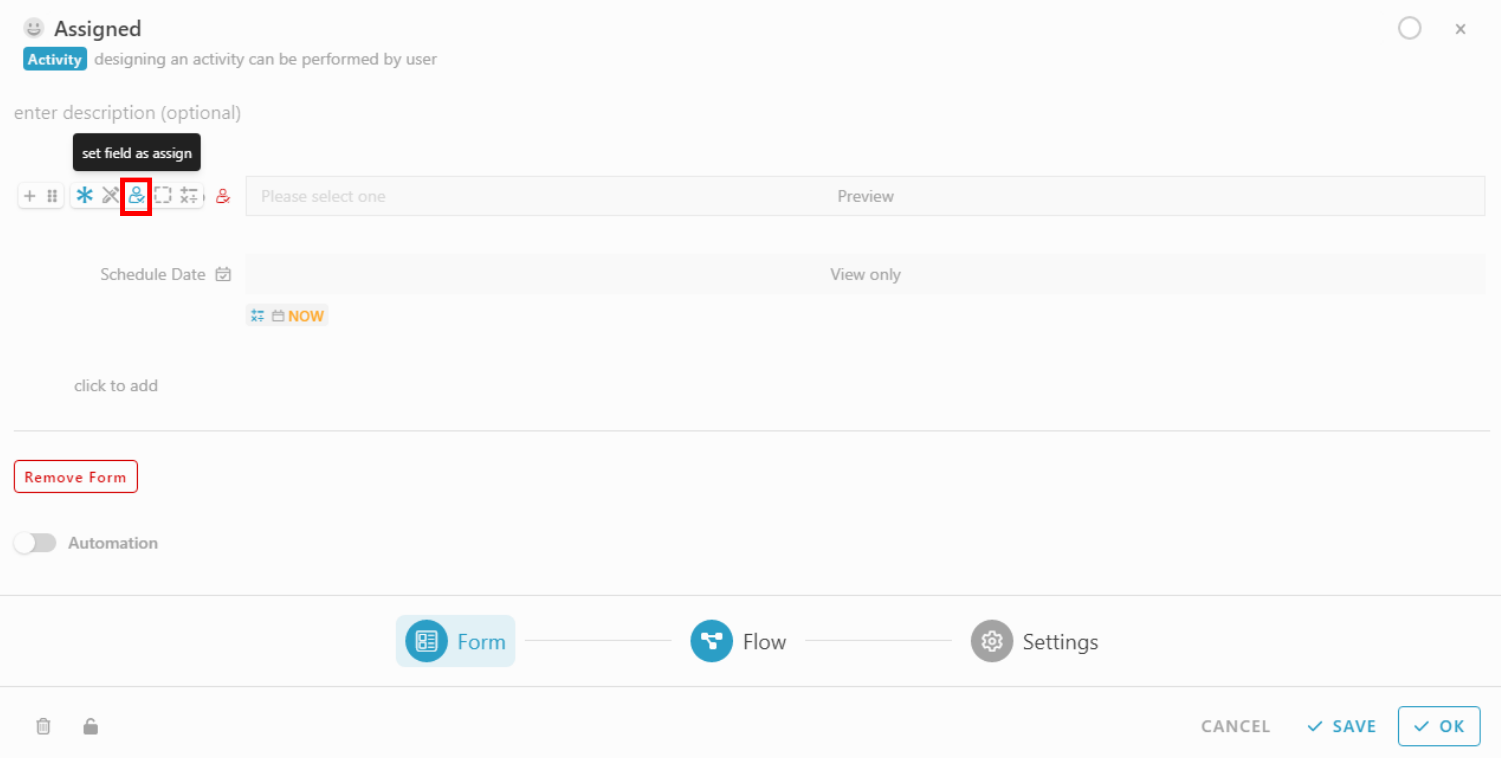
- After Information is added, hover the information and click the icon “set field as assign”
- Remember to save the changes.
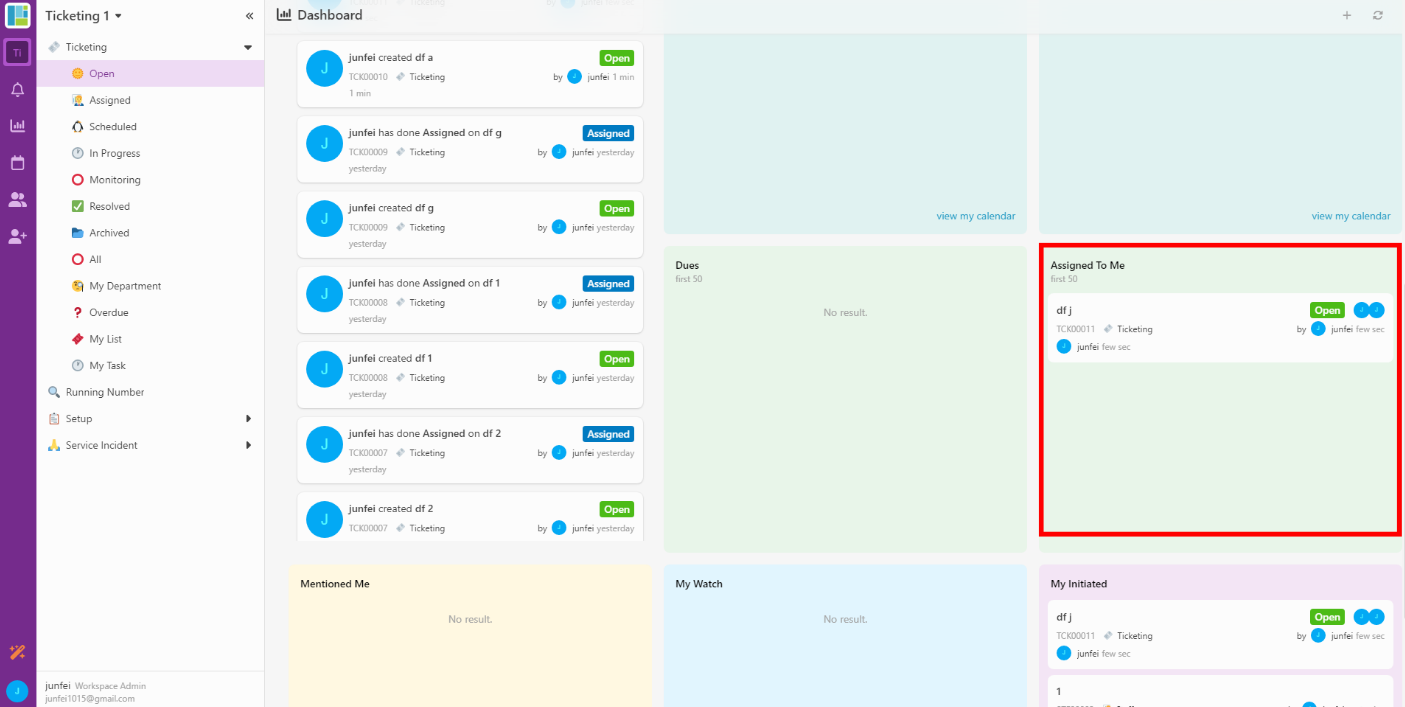
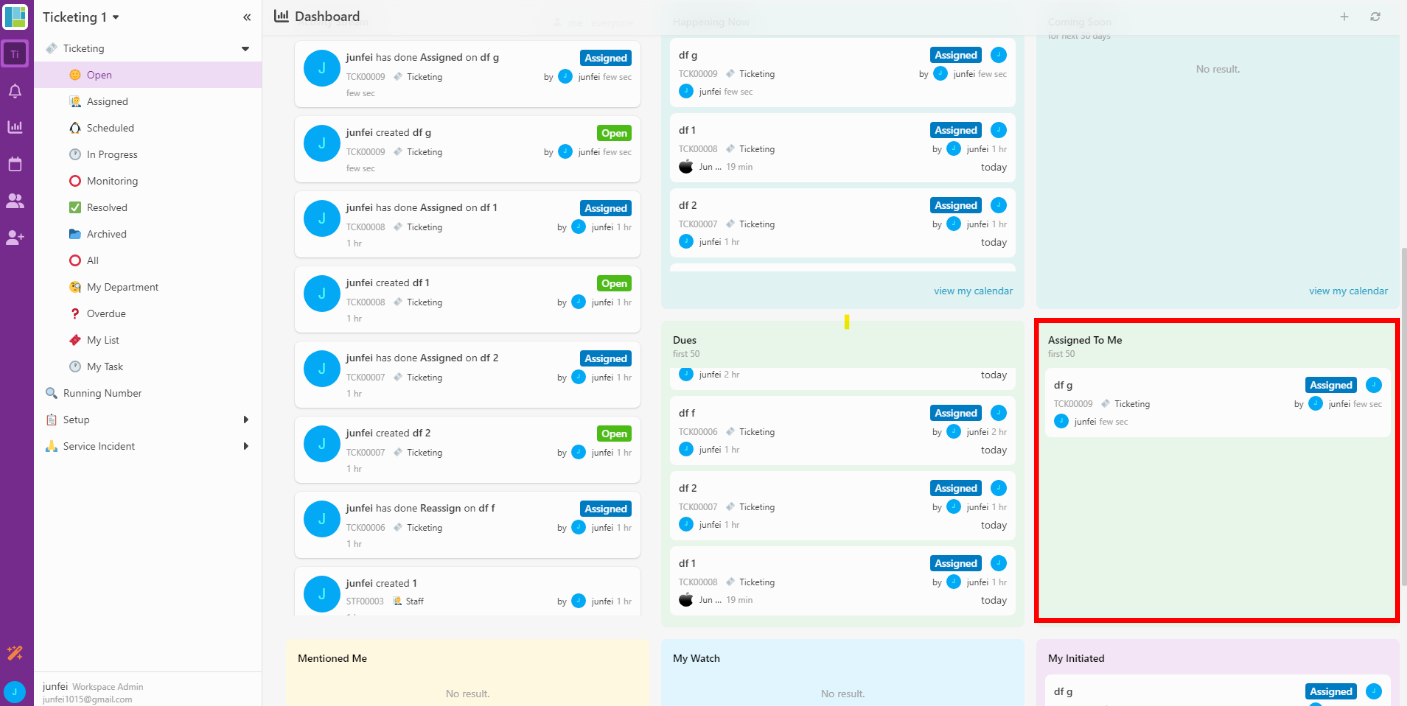
Result in Dashboard (show the task in Assigned To Me, not in Dues):
After
- create an new entry (add the information in form of Default (Create + Edit + View))
The task is in state Open (initial state)
or
- perform the activity (add the information in form of Activity)
The task is in state Assigned (state after perform activity)
Assign To (with Due Date)
- Edit the form design either in Default (Create + Edit + View) or an Activity.
- Add an information which Information type is User and select a Module of user in the form.
- After Information User is added, hover the information and click the icon “set field as assign”
- Add another information and the Information type is Date or Date Time.
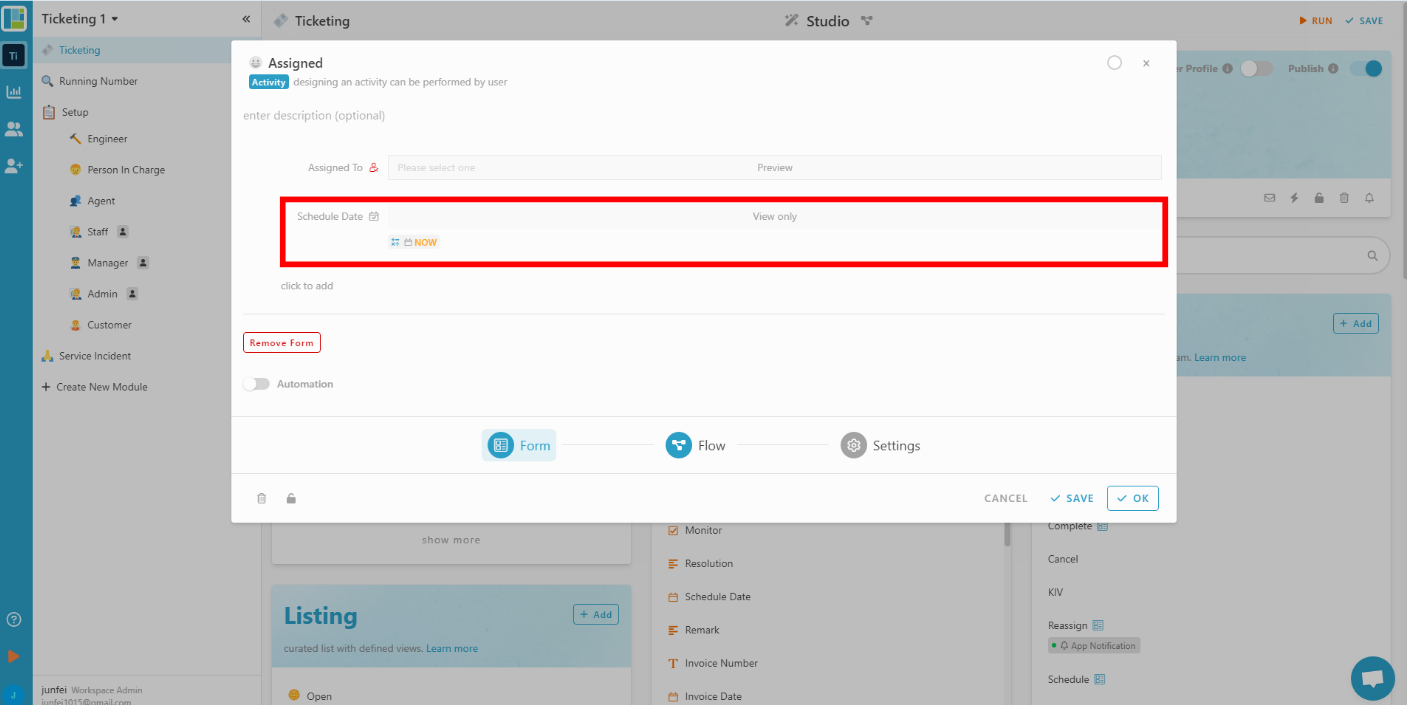
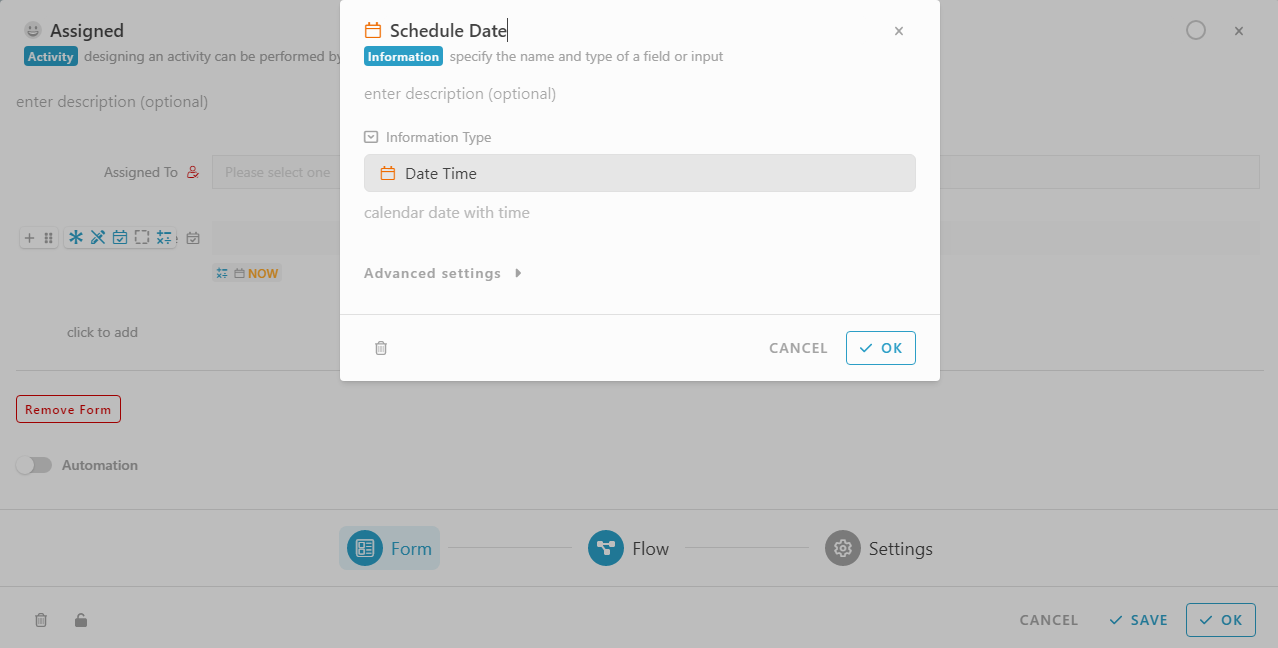
- After Information Date is added, hover the information and click the icon “set field as due”
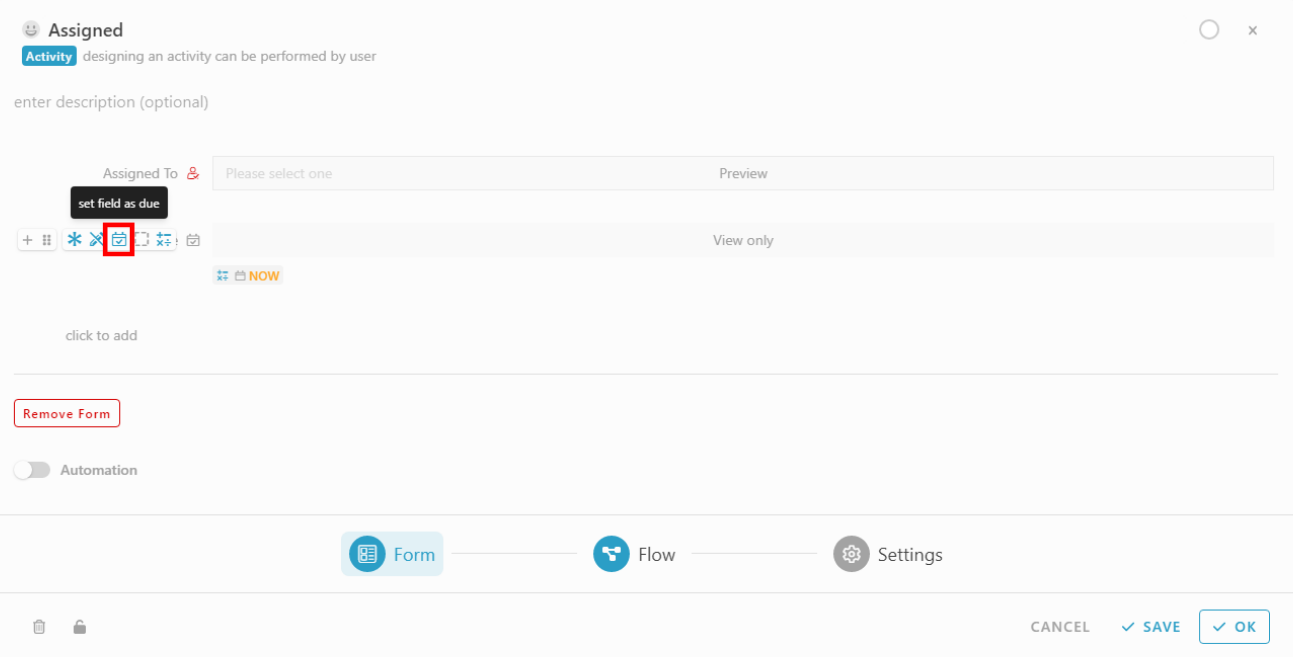
- Remember to save the changes.
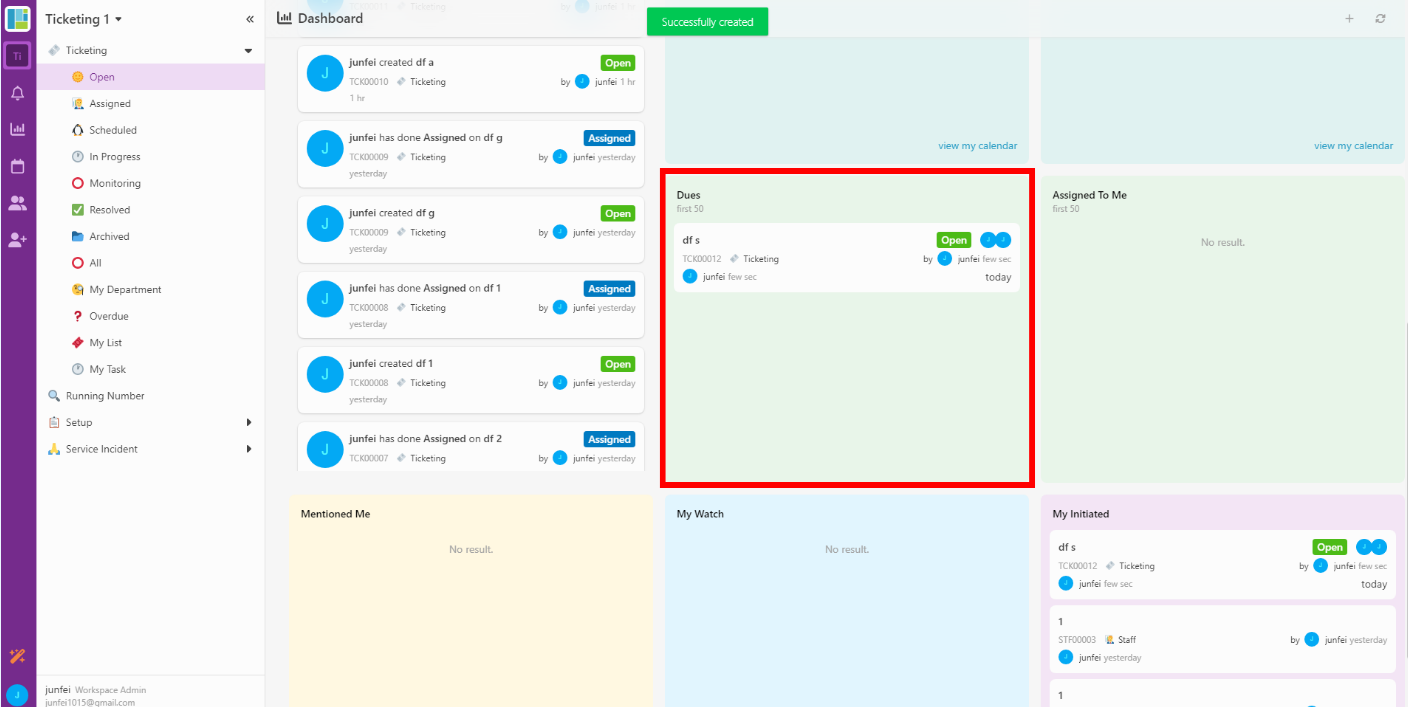
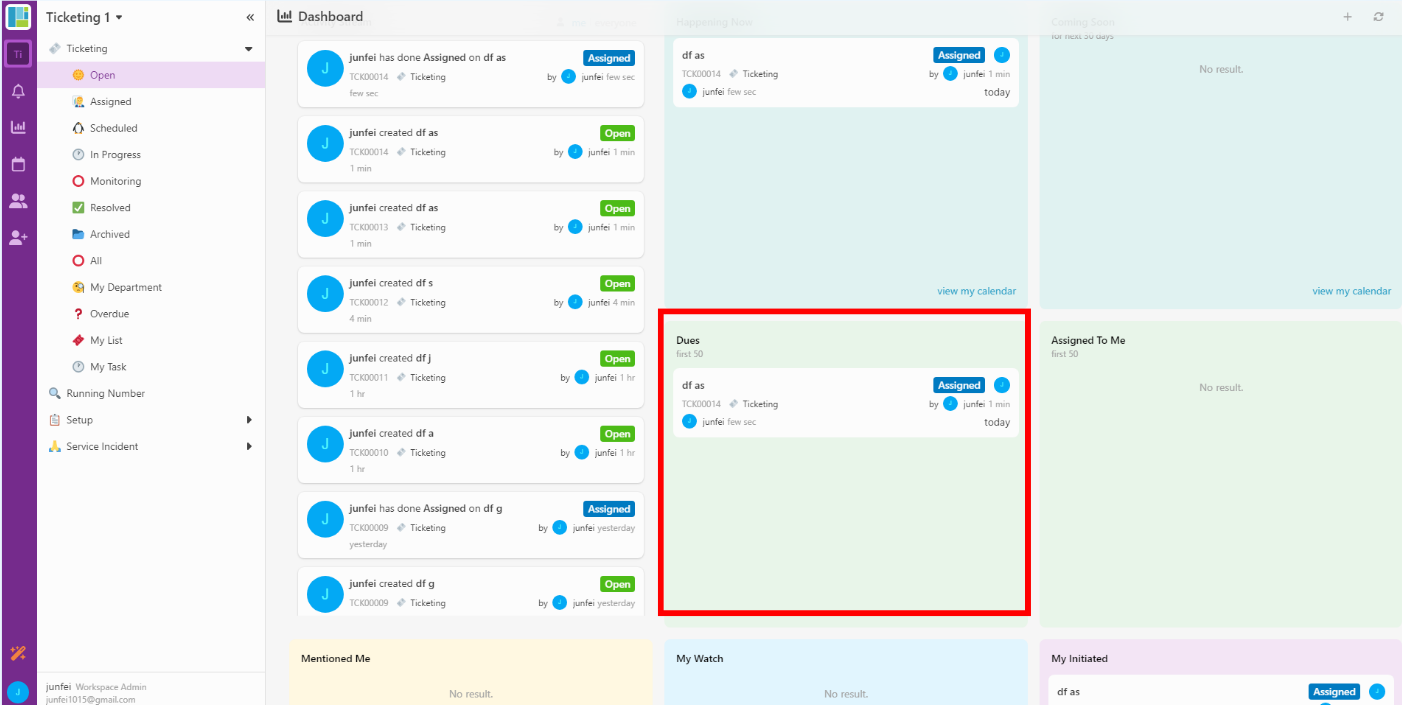
Result in Dashboard (show the task in “Dues”, not in “Assigned To Me”):
After
- create an new entry (add the information in form of Default (Create + Edit + View))
The task is in state open (initial state)
or
- perform the activity (add the information in form of Activity)
The task is in state Assigned (state after perform activity)
Assigned Task Completed
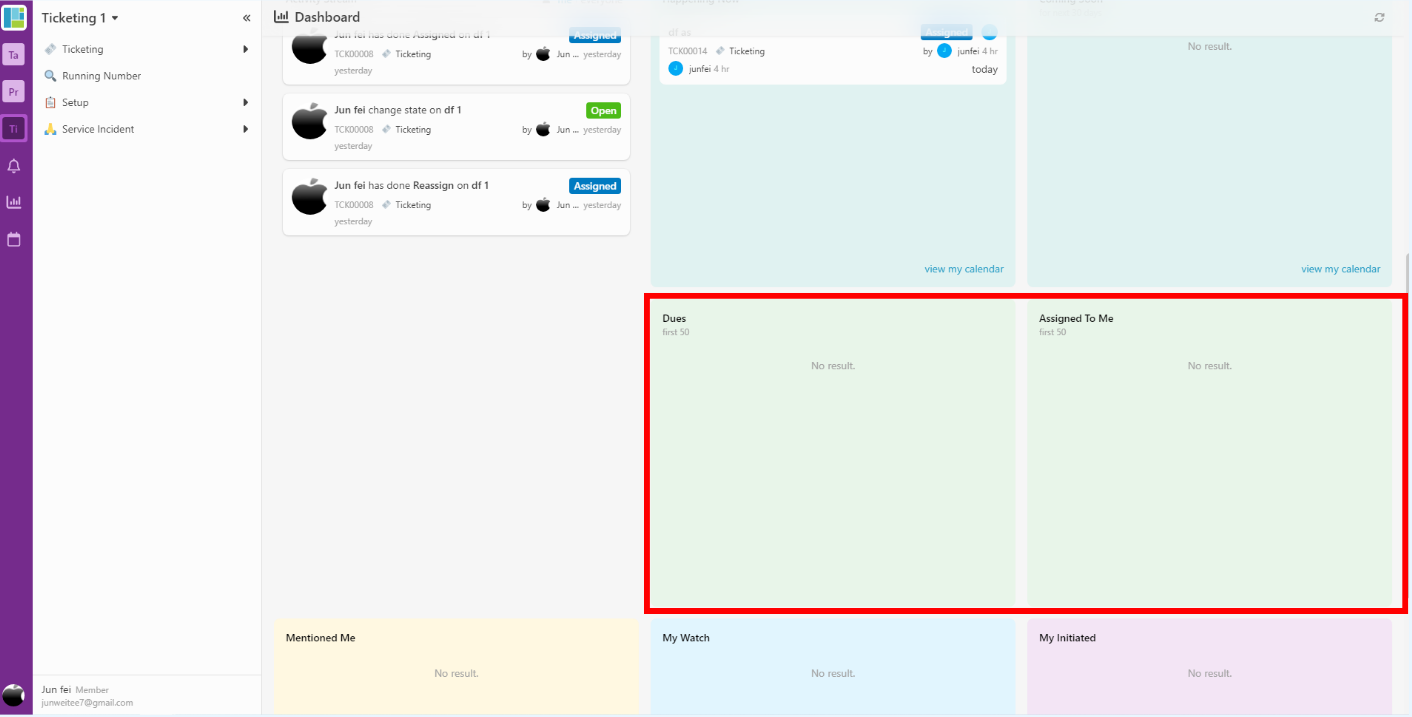
After Complete the task, the state will become Closed after perform activity done.
Result in Dashboard (do not show the task in “Dues” and “Assigned To Me”):
 That’s it !